Guide

How to use Skip Budget

Every feature, step by step, with screenshots from the app. Can’t find it here? Ask Sam.

Get started

Getting started

Download Skip Budget, create your account and set up the basics in a few minutes.

Skip Budget is on the App Store and Google Play. You never link a bank: everything in Skip is what you add yourself.

  1. Open the app and tap Get started. Already have an account? Tap Log in instead.
  2. Read the two short intro pages, tapping Continue and then Let's go.
  3. On Set up your login, tap Continue with Google, Continue with Apple (iPhone only) or Continue with Email.
  4. With email, enter your email and a password of at least 6 characters, then tap Create account. If we email you a code, type it on Enter the code. No code? Check your spam folder or tap Resend code.
  5. On What should we call you?, type your name and tap the picture to choose one. Tap Continue, or Skip for now.

Next comes Let’s set up Skip. Each step opens the real form, and you come back here when you save:

  • Set your pay
  • Add your credit card and bank account
  • Add your bills
  • Add your subscriptions
  • Add a receipt (optional)

Tap Continue for the next step, or Set up later to go straight to Home. Anything you skip stays on a Getting started card on Home until it's done or you close the card. To bring the card back, go to Settings > Support and feedback > Getting started.
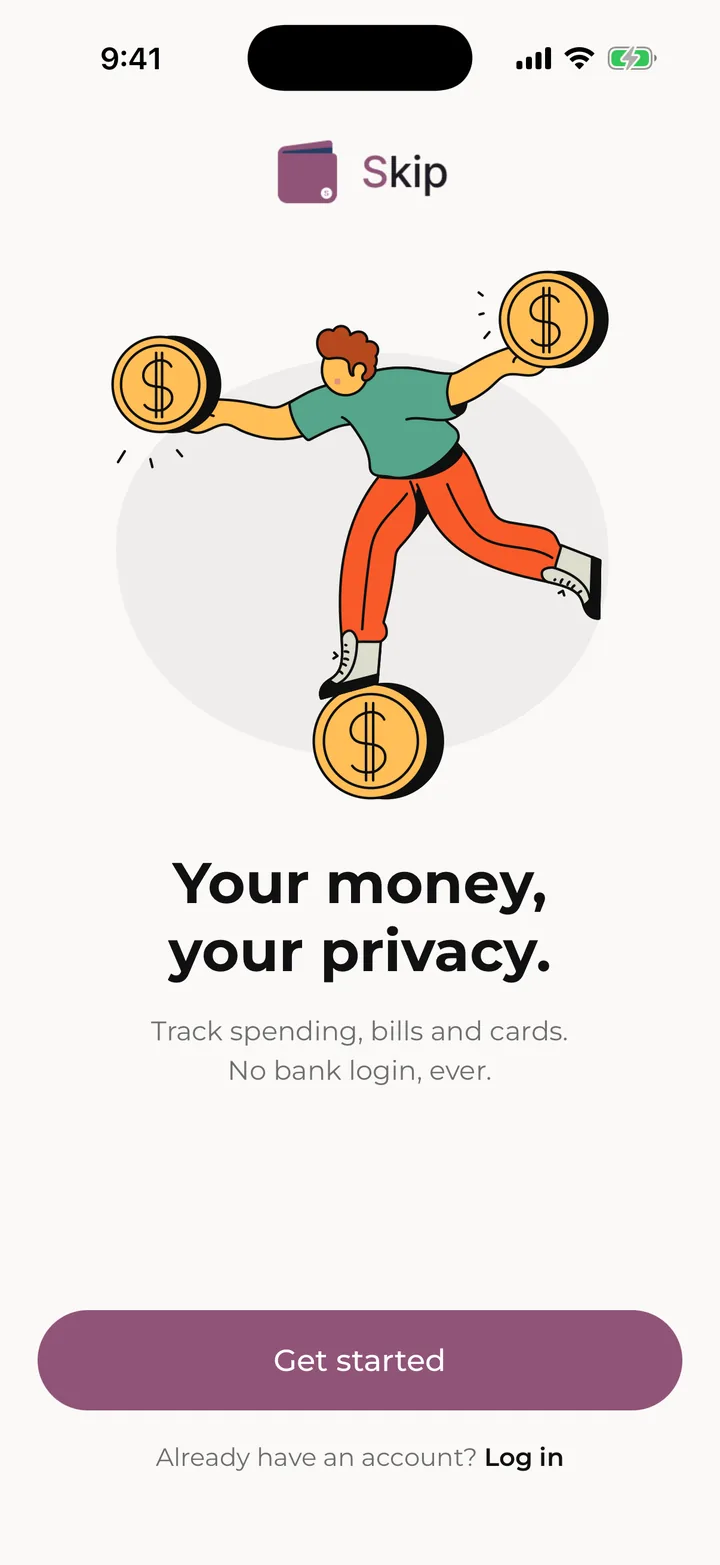
The Welcome screen, where you start.

Home

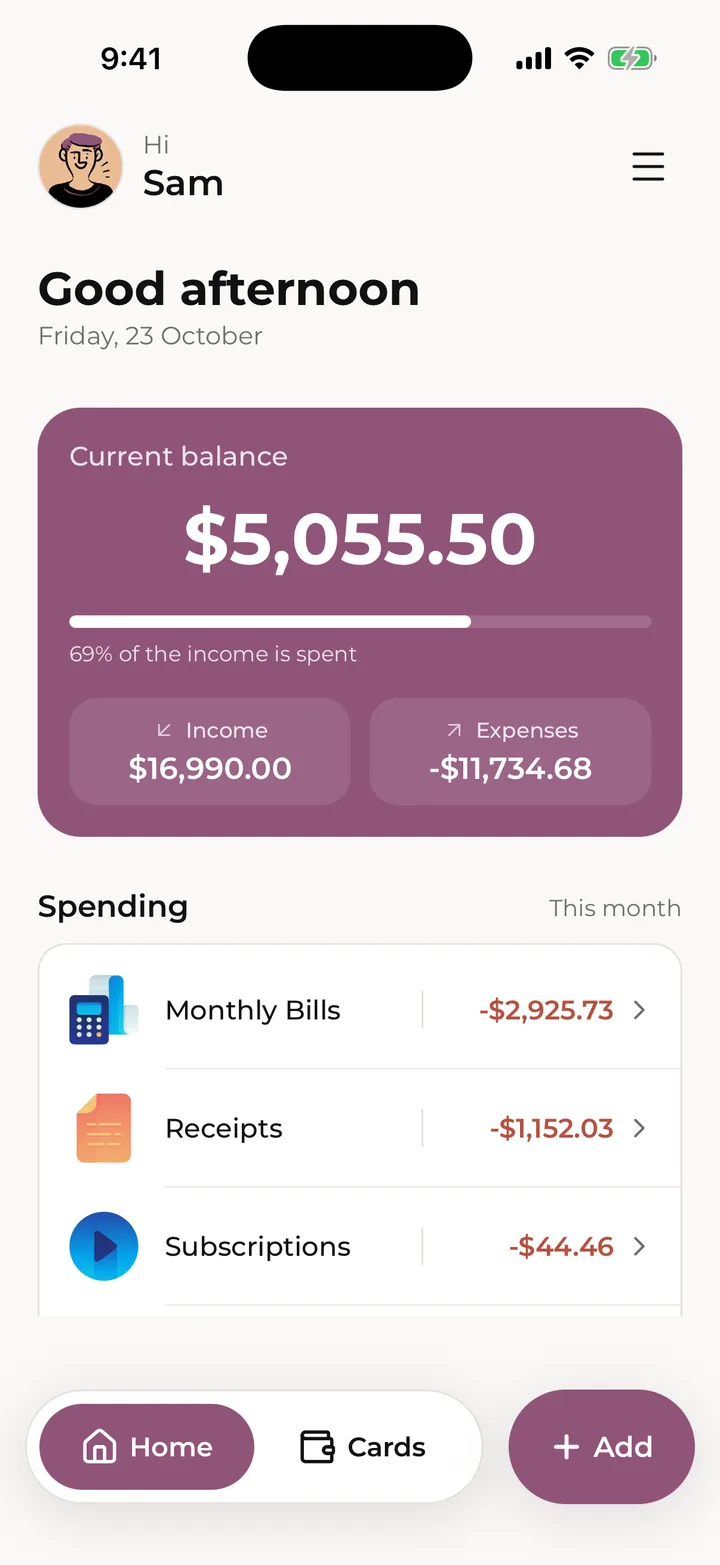
Your current balance, this month’s spending and what’s coming up, on one screen.

Home is the first tab. Tap your picture or the menu button at the top to open Settings.

Current balance is the money you have right now: what's in your bank accounts, minus what you owe on your cards, rolled forward from the balances you typed in. It works like a running bank balance and never resets at the start of a month.

  • Each payday adds your pay.
  • Receipts, bills and subscriptions come off on the day they happen. Nothing counts before its date.
  • Paying a card from one of your accounts, or moving money between your accounts, doesn't change it. Money added to an account as New money, like a gift or a refund, raises it.
  • Savings and goals don't change it.

Under the balance, Income and Expenses show the pay and spending counted so far, and the bar shows how much of your income is spent.

Further down:

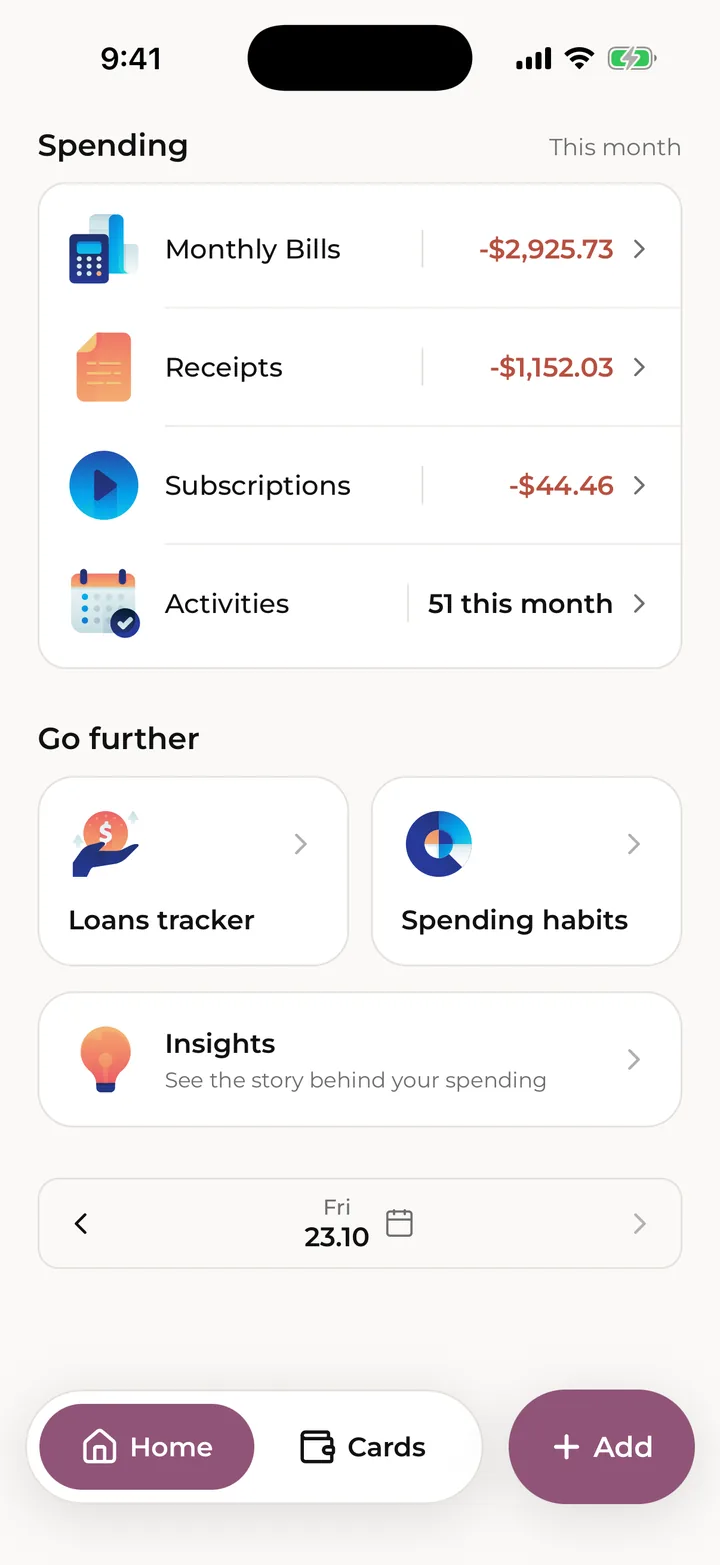
  • Spending shows this month's Monthly Bills, Receipts and Subscriptions, and Activities opens every transaction this month, with search and filters.
  • Go further holds Loans tracker, Spending habits and the Insights card.
  • Recent lists one day's transactions. Use the arrows, or tap the date, to look at another day.
  • Coming up lists what's still due for the rest of this month.

Tap any row to open it, and pull down to refresh.

Home, with the Current balance card at the top.
Spending this month, and the tools under Go further.

The Add page

One place to add anything: tap Add next to the tabs.

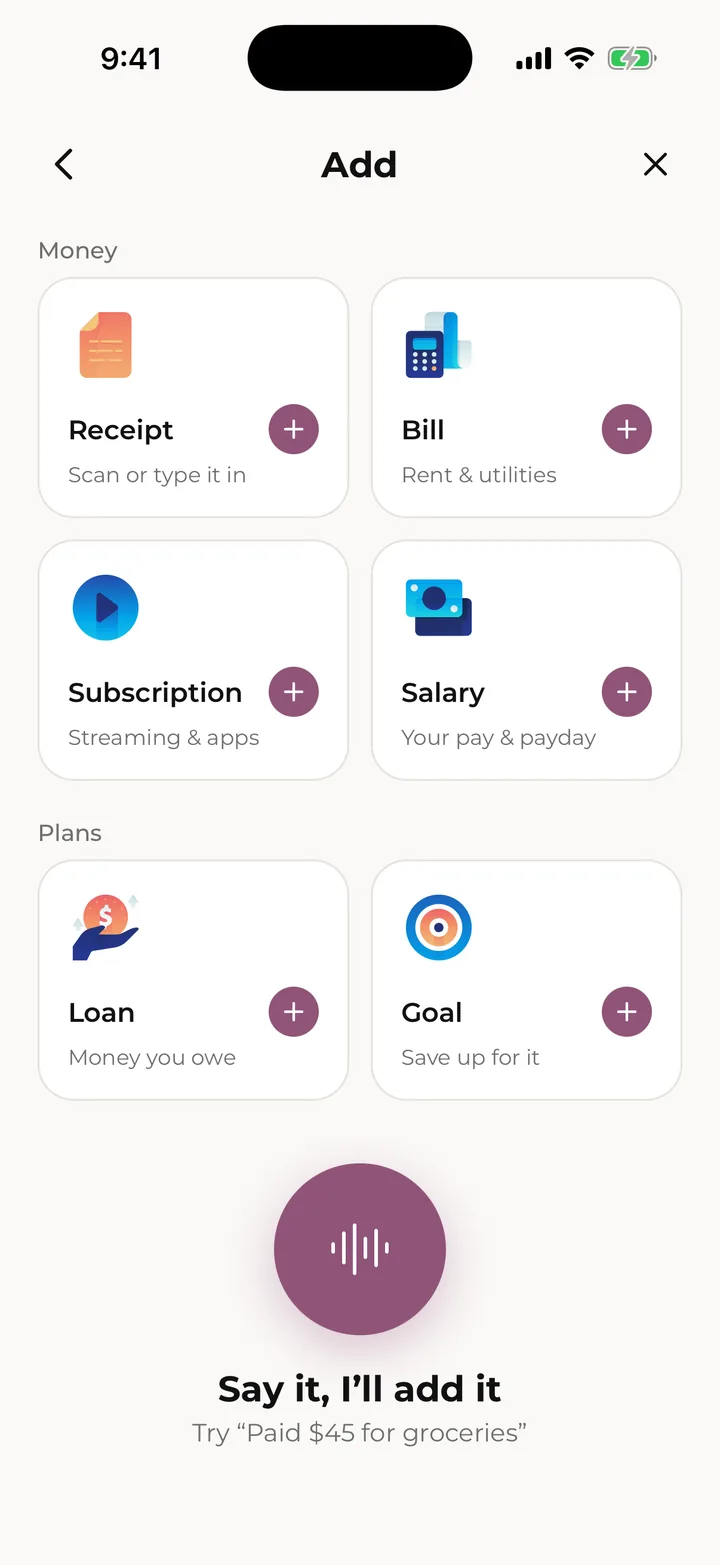
Tap Add beside the tabs at the bottom of Home or Cards. Each tile opens its form, and when you save you land back where you started.
Money

  • Receipt: something you bought. Scan it or type it in.
  • Bill: rent, utilities and other bills that come back.
  • Subscription: streaming, apps and memberships that renew on their own.
  • Salary: your pay and when it lands.

Plans

  • Loan: money you owe and pay back each month.
  • Goal: something you're saving up for.

At the bottom, Say it, I’ll add it adds a receipt, bill or subscription by voice. Voice is part of Skip Pro; on Free the button carries a PRO badge and shows what it can do.

To leave without adding anything, tap the back arrow or the X.

The Add page: money, plans and voice.

Everyday money

Receipts

Add what you buy day to day by typing, scanning or uploading, and find it again later.

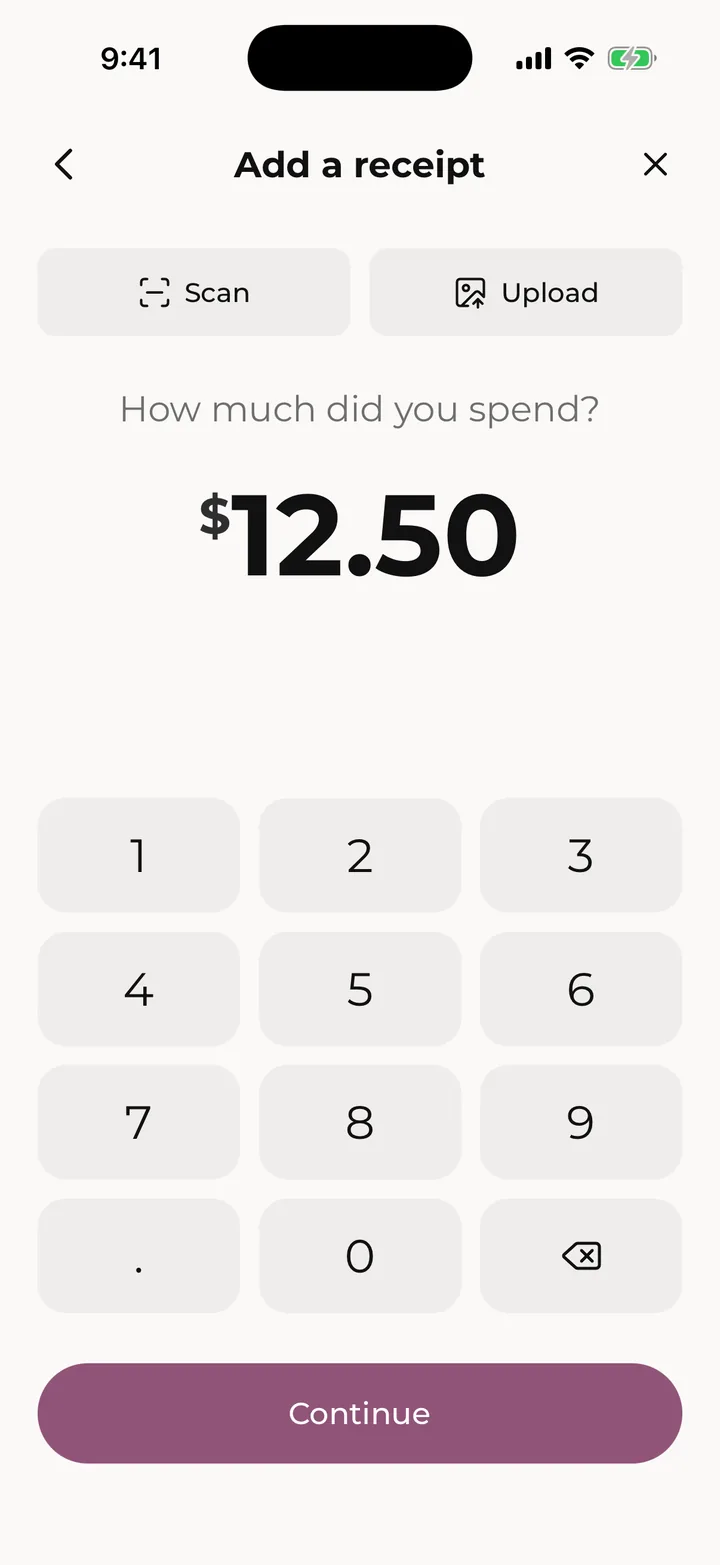
To add a receipt, tap Add > Receipt.

  1. On How much did you spend?, type the amount. Or tap Scan and point the camera at a paper receipt, or Upload to pick a photo or PDF from Photo library or Files. Skip reads the store, date and amount and tells you what it found. Tap Continue.
  2. Check Store, Date, Book and Paid with. Pick the card or account you paid with, or tap Skip to leave it off any card or account. Add a Note if you like.
  3. Tap Save receipt. If anything is missing, Skip tells you what to fill in.

Scans and uploads are read on your phone, with Apple's text reading on iPhone and Google ML Kit on Android. The photo is never uploaded. Free includes 15 scans and 15 uploads each calendar month, and the receipt page shows how many are left. Skip Pro has no limit.

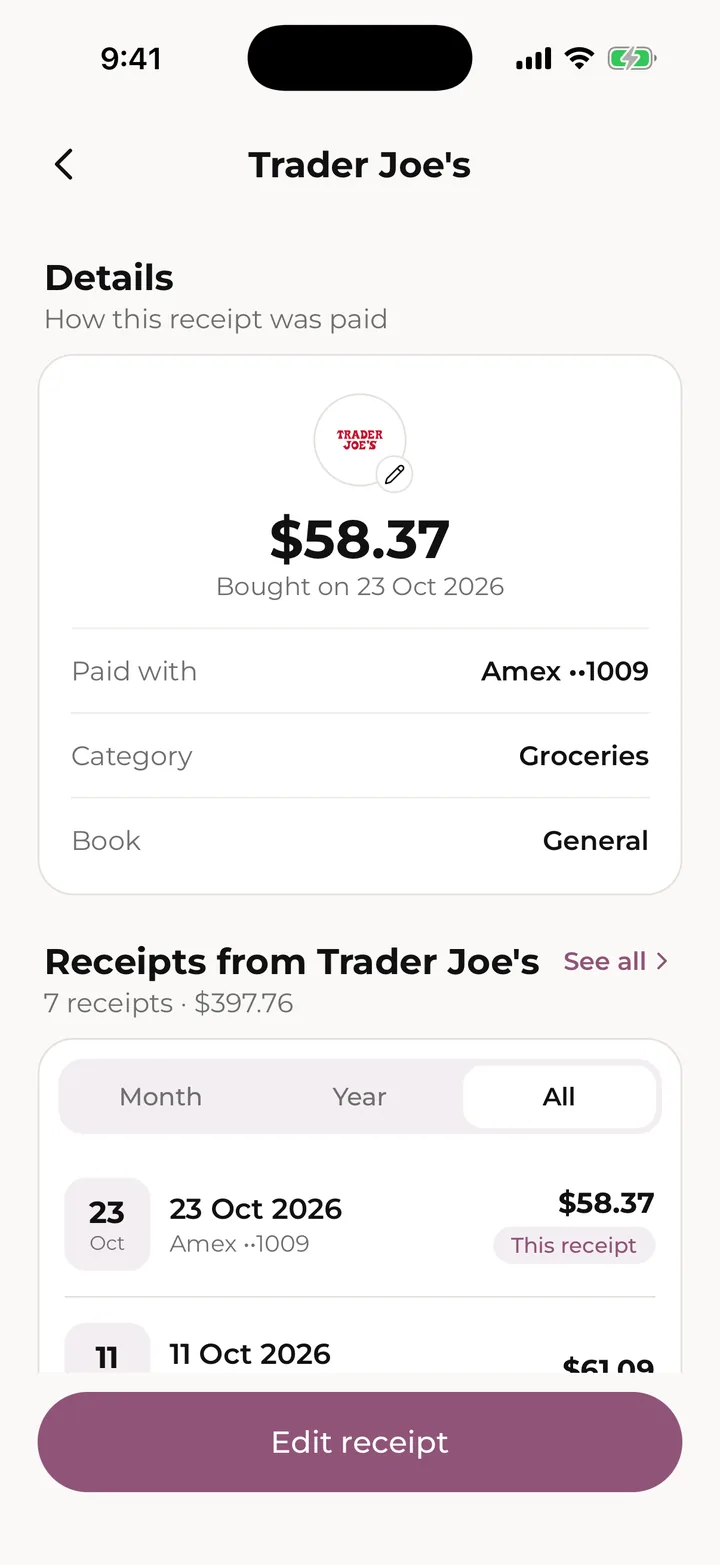
When you type a store name, Skip finds its logo and category. A store with no logo gets an icon instead. To change it, open the receipt and tap its logo (the one with the small pencil). Pick another logo, search with the company's website, or choose No logo, use an icon, then tap Save logo. Logos are free on every plan.

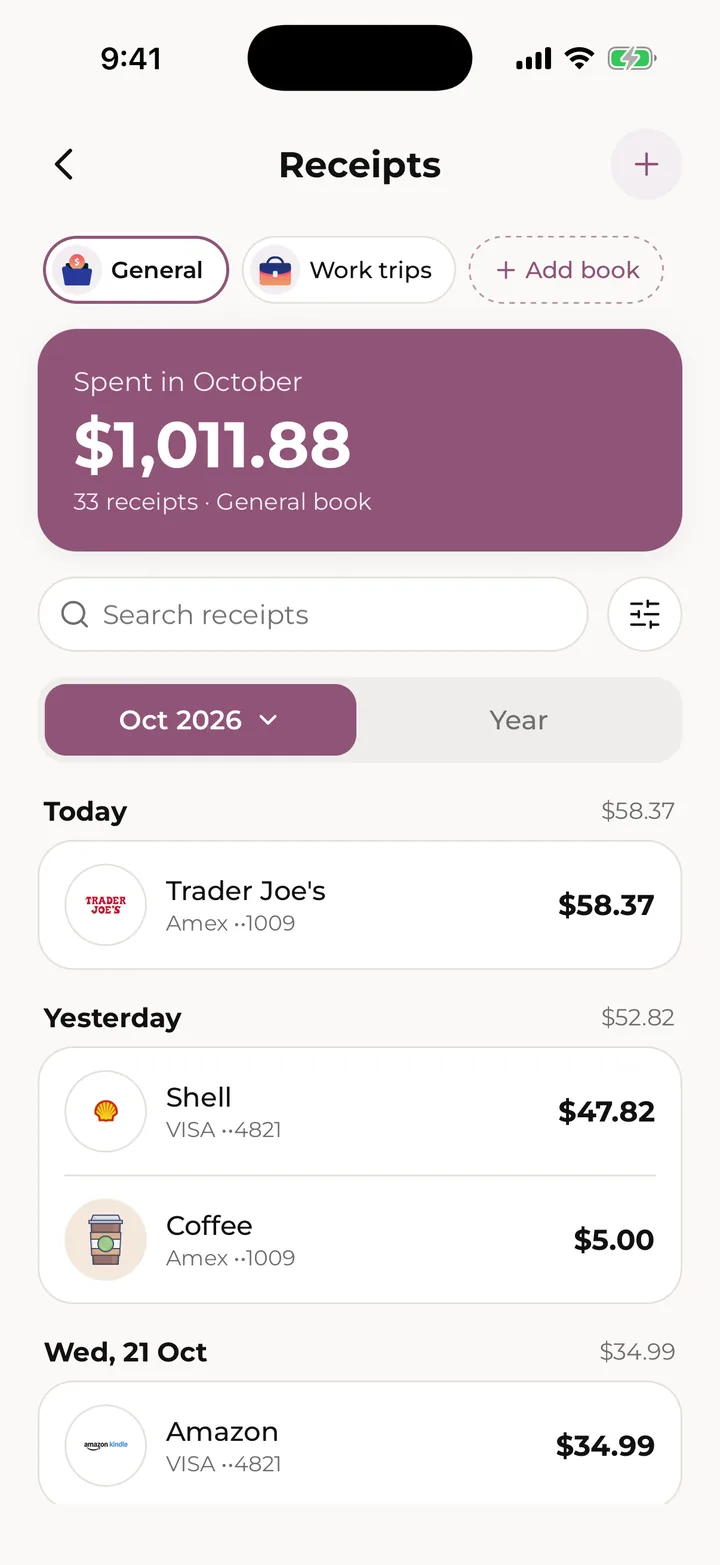
Receipt books keep receipts apart, like a trip or work. On the Receipts page, tap Add book, give it a name and an icon, and tap Create book. Receipts in any book still count toward your spending. Free has the General book only; books of your own are part of Skip Pro. To choose where new receipts go, open Settings > Your money > Default receipt book.

To find a receipt, open Receipts from Spending on Home. Search by store, filter by date or card, and switch between Month and Year. Tap a receipt to see it, then tap Edit receipt to change it. To remove it, tap Delete receipt at the bottom of the edit page.

On Free, your lists show the last 90 days. Older receipts are kept and still count in your balances, and Skip Pro shows up to 7 years. Skip can't record a date more than seven years ago.

Receipts, grouped by day, with book pills at the top.
Adding a receipt: type the amount, or scan or upload it.
A receipt’s page, with its other visits to the same store.

Bills

Track bills that come back, like rent, power and your phone, and see what’s due each month.

  1. Tap Add > Bill.
  2. Pick what it's for, such as Housing, Electricity & Gas or Mobile Phone.
  3. Type the amount and tap Continue. Tap Calculator if you need to add things up first.
  4. Add the Name: search for the company, or type your own. Then choose how often it's Recurring and the payment day. Pick Specific period for a bill that runs between two dates.
  5. Under Paid with, pick the card or account it comes from, or tap Skip.
  6. Use Remind me to get a notification on the day, or 1 day, 3 days or 1 week before, at the time you choose.
  7. Tap Save bill.

If the bill started before today, tap Started earlier? Pick the first date and Skip fills in the payments since. On each due date, Skip records the payment for you, from the card or account you picked.

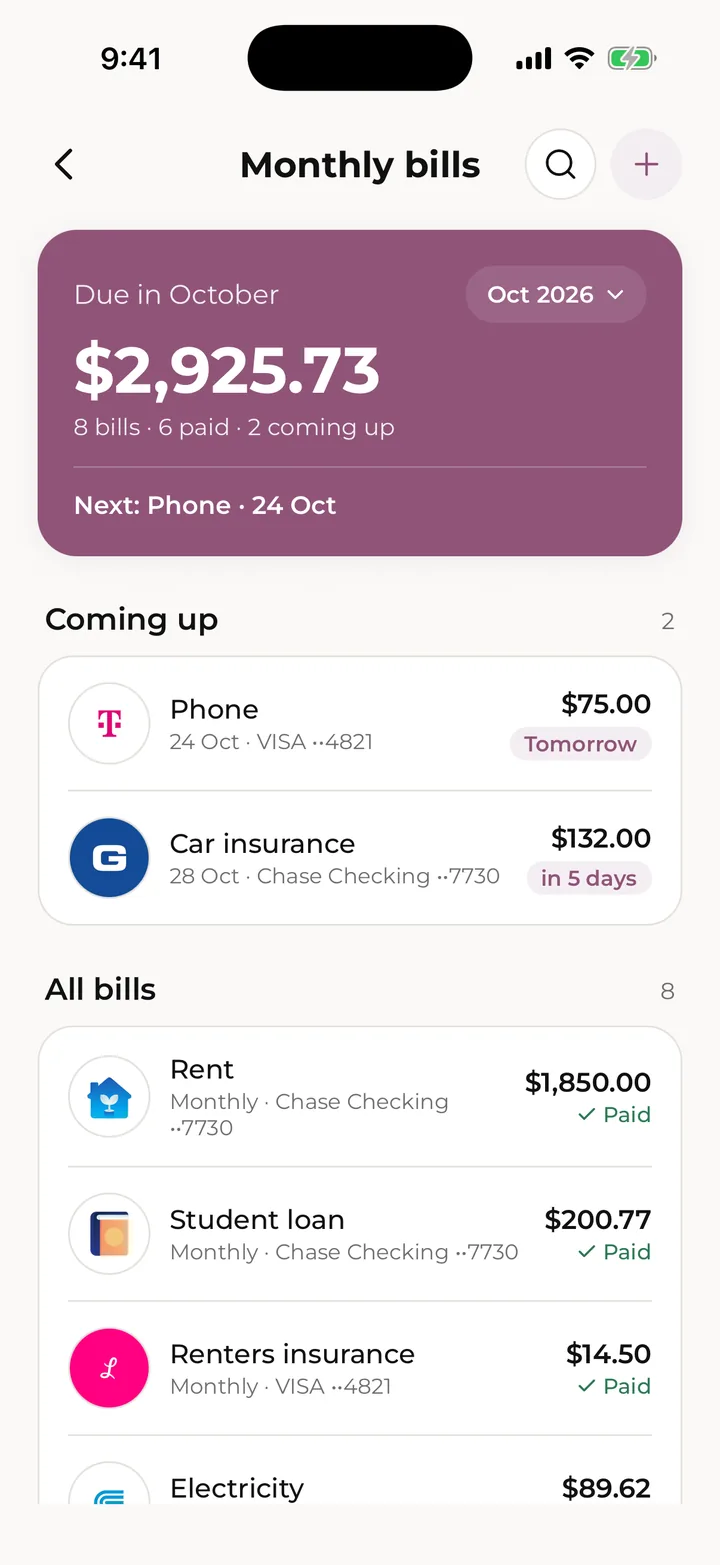
Monthly bills (from Spending on Home) shows what's due this month, what's paid, Coming up and All bills. Tap the month to look at another one.

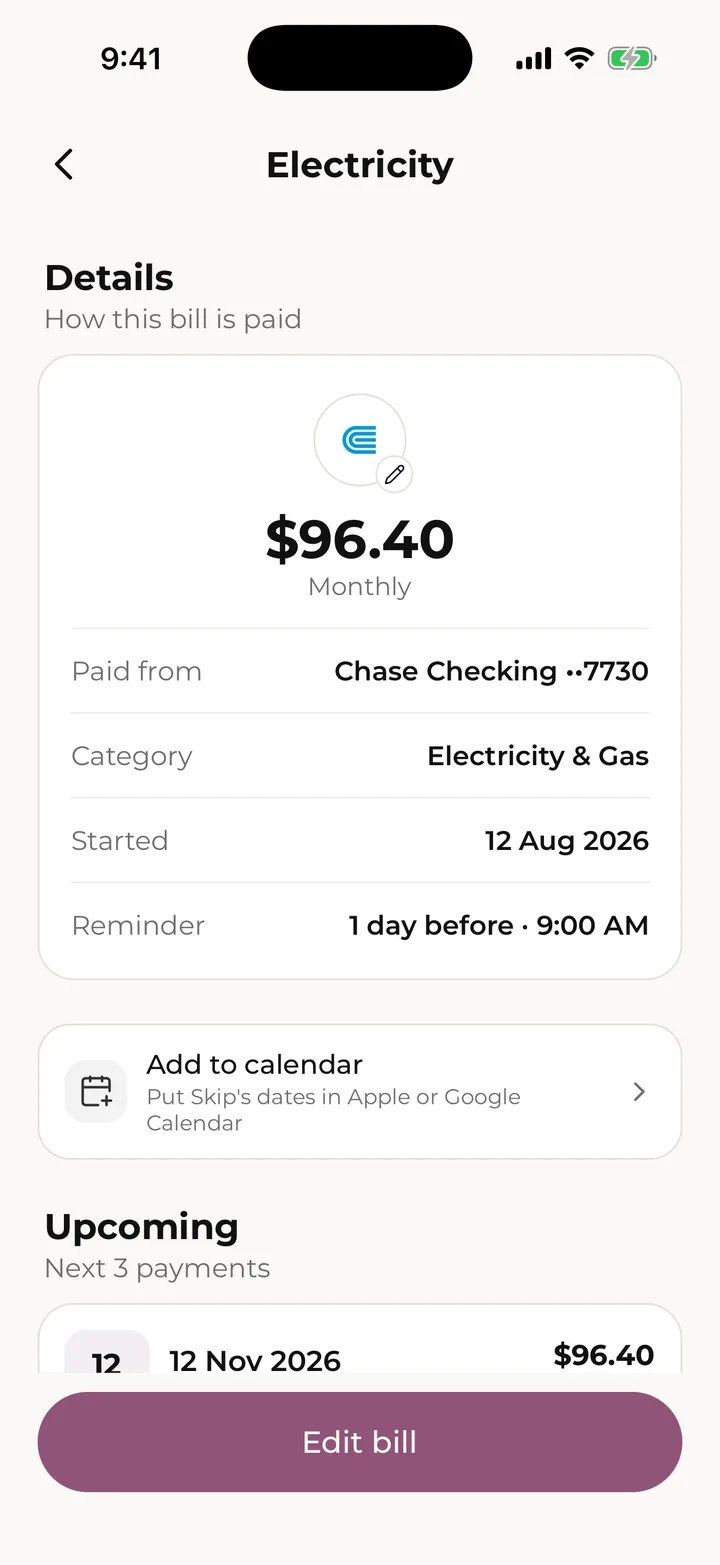
To change a bill, open it and tap Edit bill. If it already has payments, Skip asks whether to change Past and upcoming or Upcoming only. To remove it, tap Delete bill on the edit page, then choose Keep past charges or Remove everything.

Tap See payment history for every bill and subscription payment, year by year. With Skip Pro you can tap Export CSV or PDF there.

Monthly bills: what’s due, what’s paid and what’s coming up.
A bill’s page, with upcoming payments and history.

Subscriptions

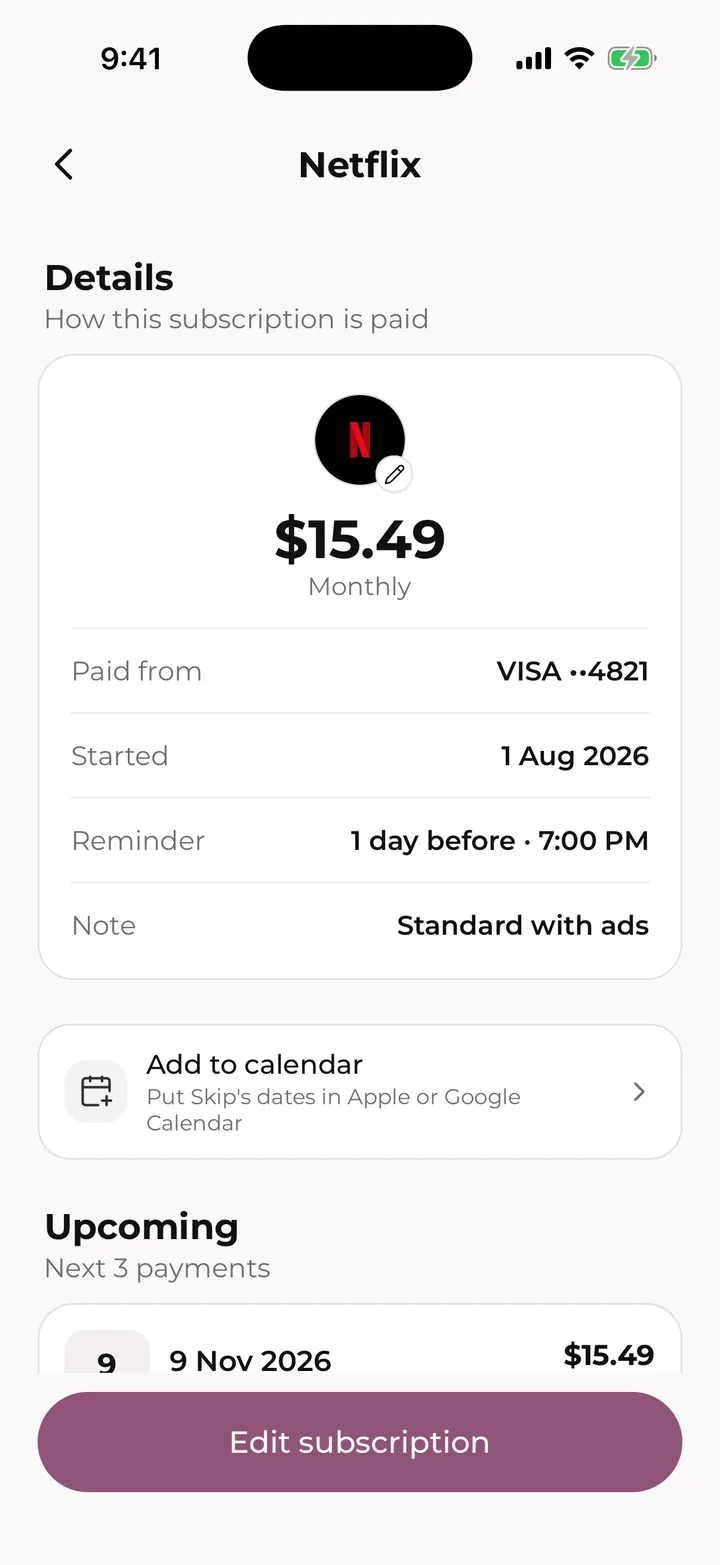
Keep track of everything that renews on its own and what it costs you.

  1. Tap Add > Subscription.
  2. Type what it costs and tap Continue.
  3. Search for the Service. Skip files it under a category and finds its logo. Then choose the Billing cycle and the Next renewal date.
  4. Under Charged to, pick the card or account, or tap Skip.
  5. Turn on Remind me for a heads-up before it renews, then tap Save subscription.

Skip records each renewal on its date. If it started earlier, tap Started earlier? Pick the first date to fill in the charges since.

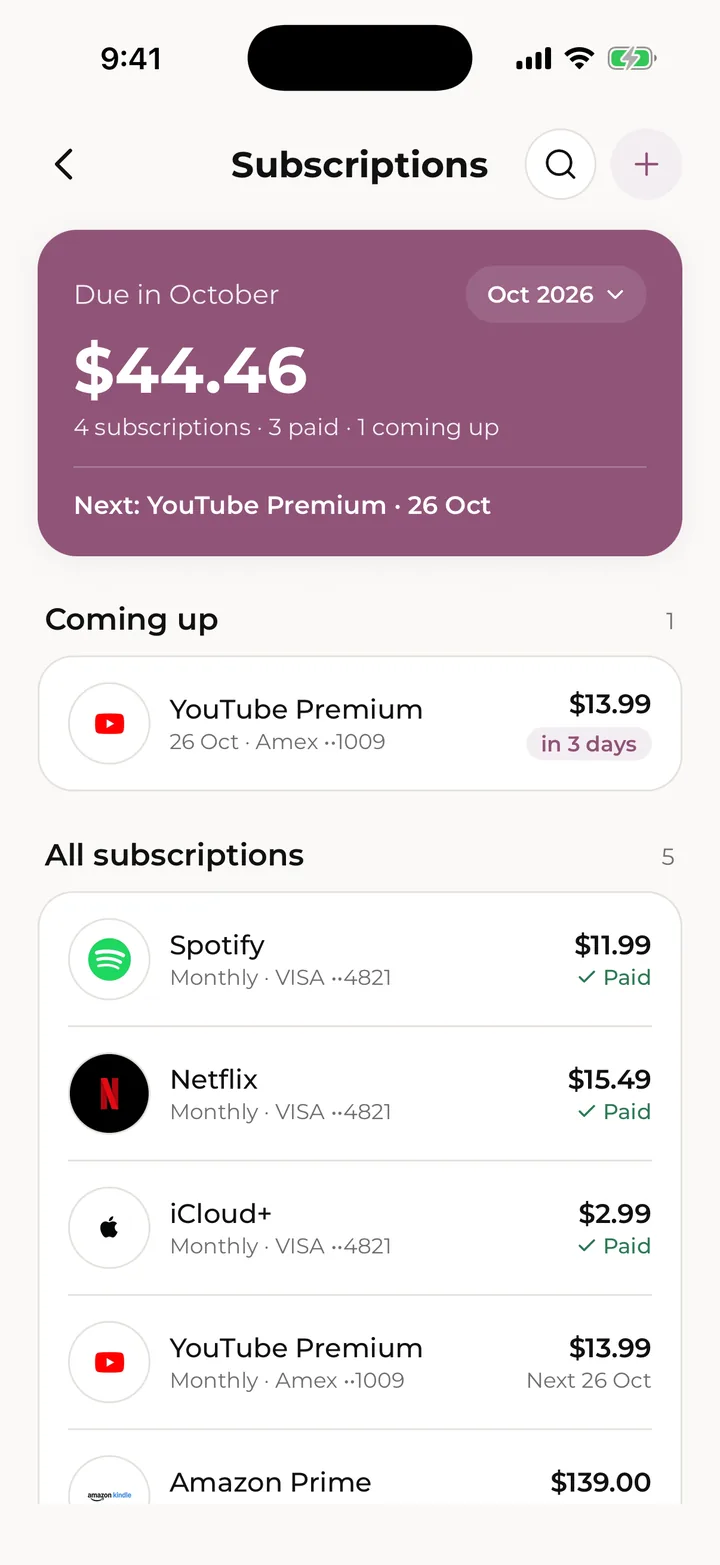
Subscriptions (from Spending on Home) shows what's due this month, Coming up, All subscriptions and any Cancelled ones, plus See payment history.

To cancel one, open it, tap Edit subscription, set Status to Cancelled and tap Save changes. Its past charges stay in your history. To remove it completely, tap Delete subscription on the edit page and choose Keep past charges or Remove everything.

Subscriptions for the month, with what’s coming up.
A subscription’s page: cost, renewal and payment history.

Cards and accounts

Add your credit cards and bank accounts, keep their balances right and record card payments.

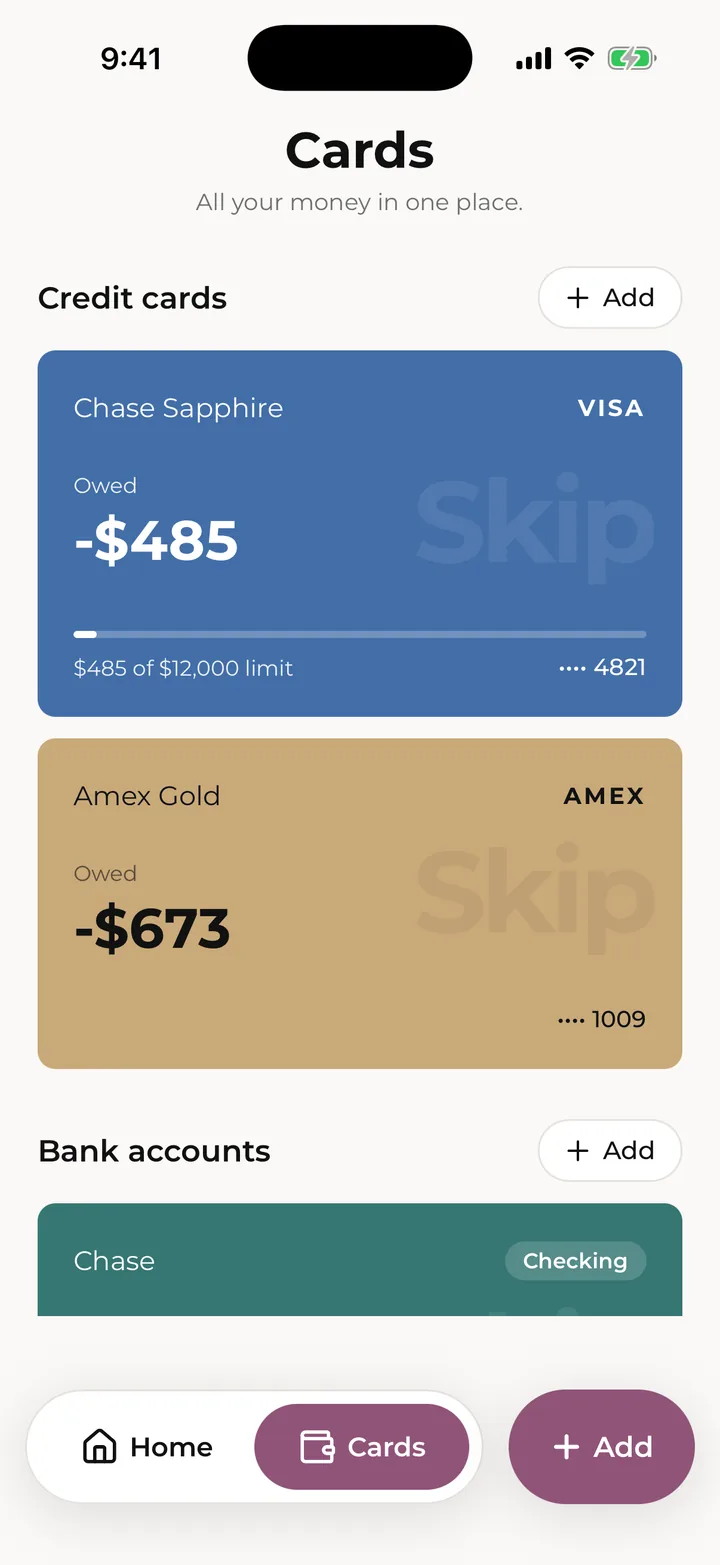
Open the Cards tab. Your Credit cards and Bank accounts are at the top, with Money below: Salary, Savings, Loans and Goals.

To add a card, tap Add next to Credit cards. Type what you owe on it right now and tap Continue. Then fill in the Card name, Network, Last 4 digits and an optional Card limit, pick the day the bill is due, and turn on Remind me if you'd like a nudge. Tap Add card.

To add a bank account, tap Add next to Bank accounts. Type what's in the account today, then the Bank name, account type and last 4 digits. If you haven't added your pay yet, you can add it here with your payday. Tap Add account.

Skip never connects to your bank. The balance you type is the starting point, and Skip keeps it up to date from that day with the pay, receipts, bills, subscriptions and payments you record.

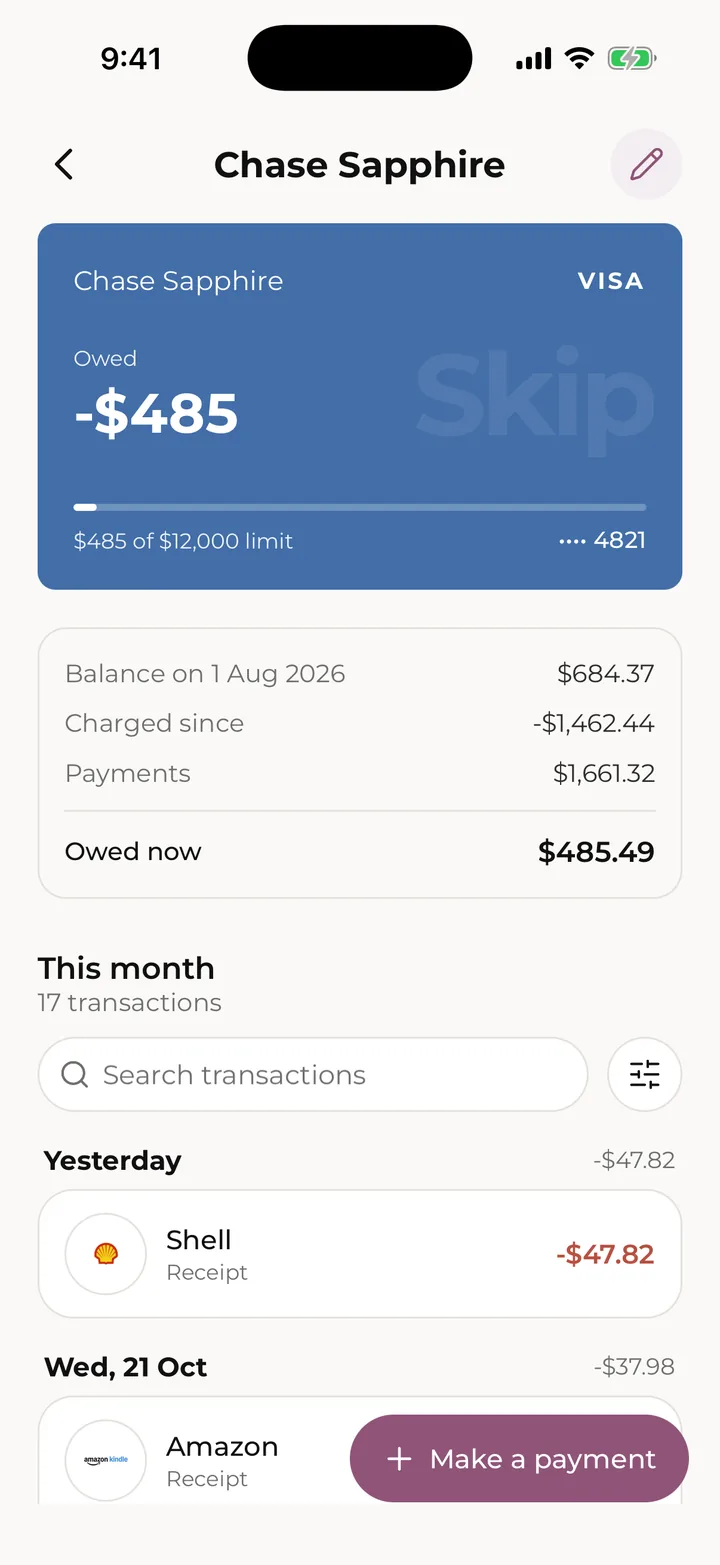
Tap a card or account to see its balance and this month's transactions. From there:

  • Make a payment (cards): enter how much you paid and pick the account it came from, or Somewhere else.
  • Add money (accounts): enter how much came in and where from, either another of your accounts or New money.
  • See payment history shows earlier months.
  • Tap the pencil to edit it, update its balance or delete it. Deleting keeps the receipts, bills and subscriptions paid with it.

You can also add a card or account straight from any Paid with list with Add card or Add account, and you'll come back to the form you were on.

Free includes one credit card and one bank account. Skip Pro has no limit.

The Cards tab: credit cards, bank accounts and money.
A card’s page, with its balance and this month’s transactions.

Pay

Add your salary and paydays, as many as you have, plus one-off pay.

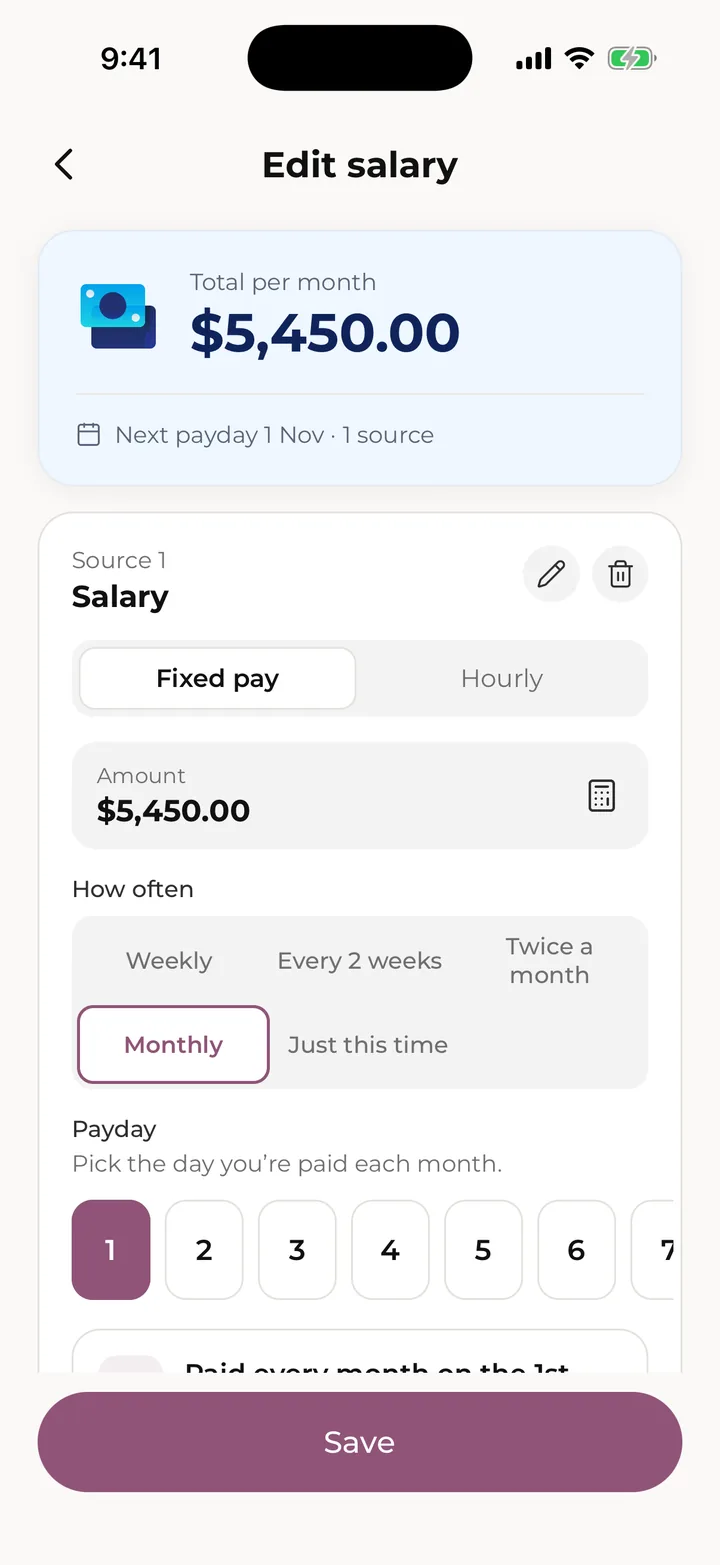
Tap Add > Salary, or open the Cards tab and tap Salary under Money.

  1. Give the pay a Name, like your employer.
  2. Choose Fixed pay and type the Amount of each paycheck before tax, or choose Hourly and enter your Hourly rate and Hours a week, plus any overtime.
  3. Pick How often: Weekly, Every 2 weeks, Twice a month, Monthly or Just this time. Then pick your payday.
  4. Under Paid into, pick the account your pay lands in, or No account.
  5. Tap Add source for another job or income, then tap Save.

Each payday adds to your Current balance on the day, and to the account it's paid into. Every plan can add as many pay sources as you like.

Just this time is for pay that's different each time, like a gig or a bonus. Enter the amount and the day it was paid, and it counts once, in that month. Earlier one-off pays sit behind a row on the edit page, where you can change or remove them.

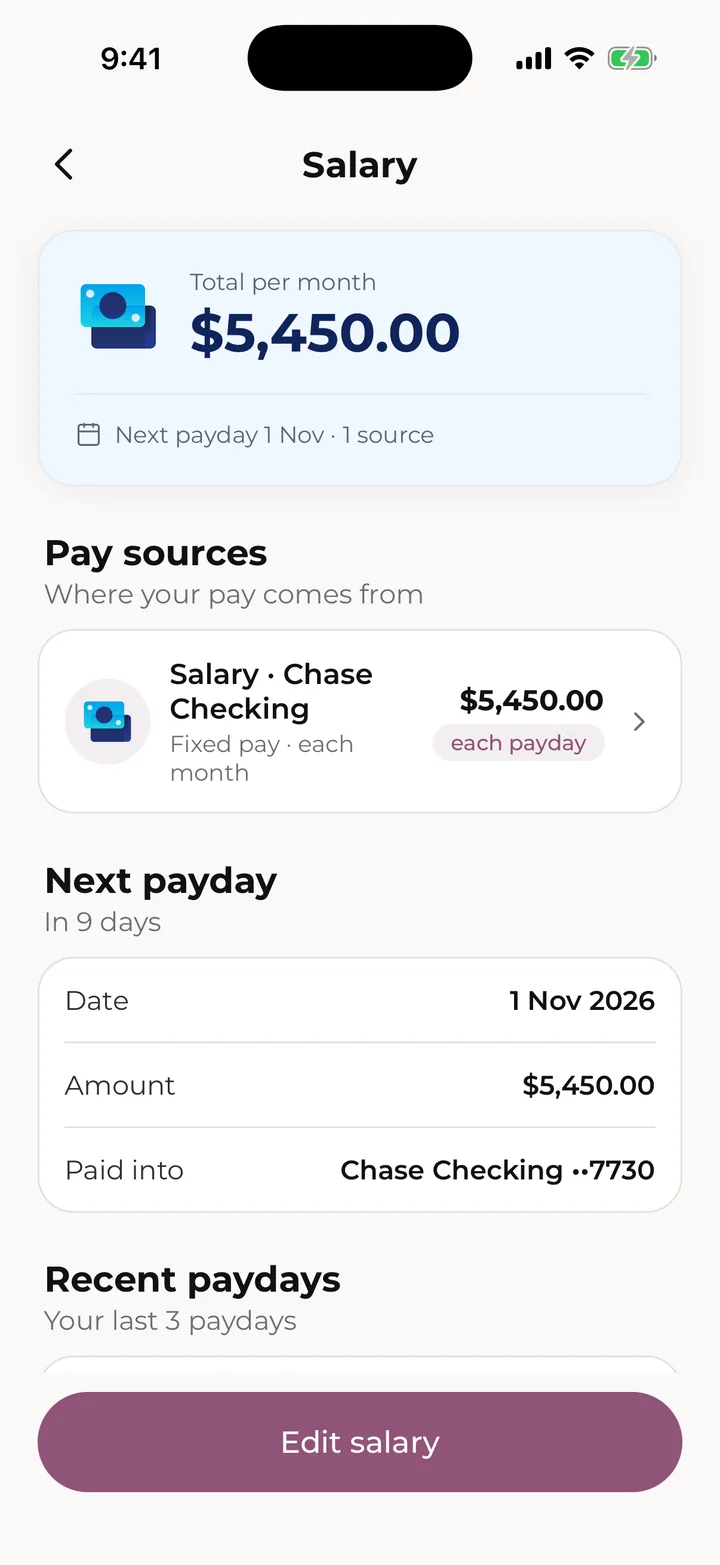
The Salary page shows your pay sources, your Next payday and Recent paydays. To change something, tap Edit salary. If that pay has already landed, Skip asks whether to change Past and upcoming or Upcoming only.

The Salary page: pay sources, next payday and recent paydays.
Editing pay, with Just this time for one-off pay.

Plans

Loans

Track the loans you have to the cent, pay extra when you can, and try numbers in the free calculator.

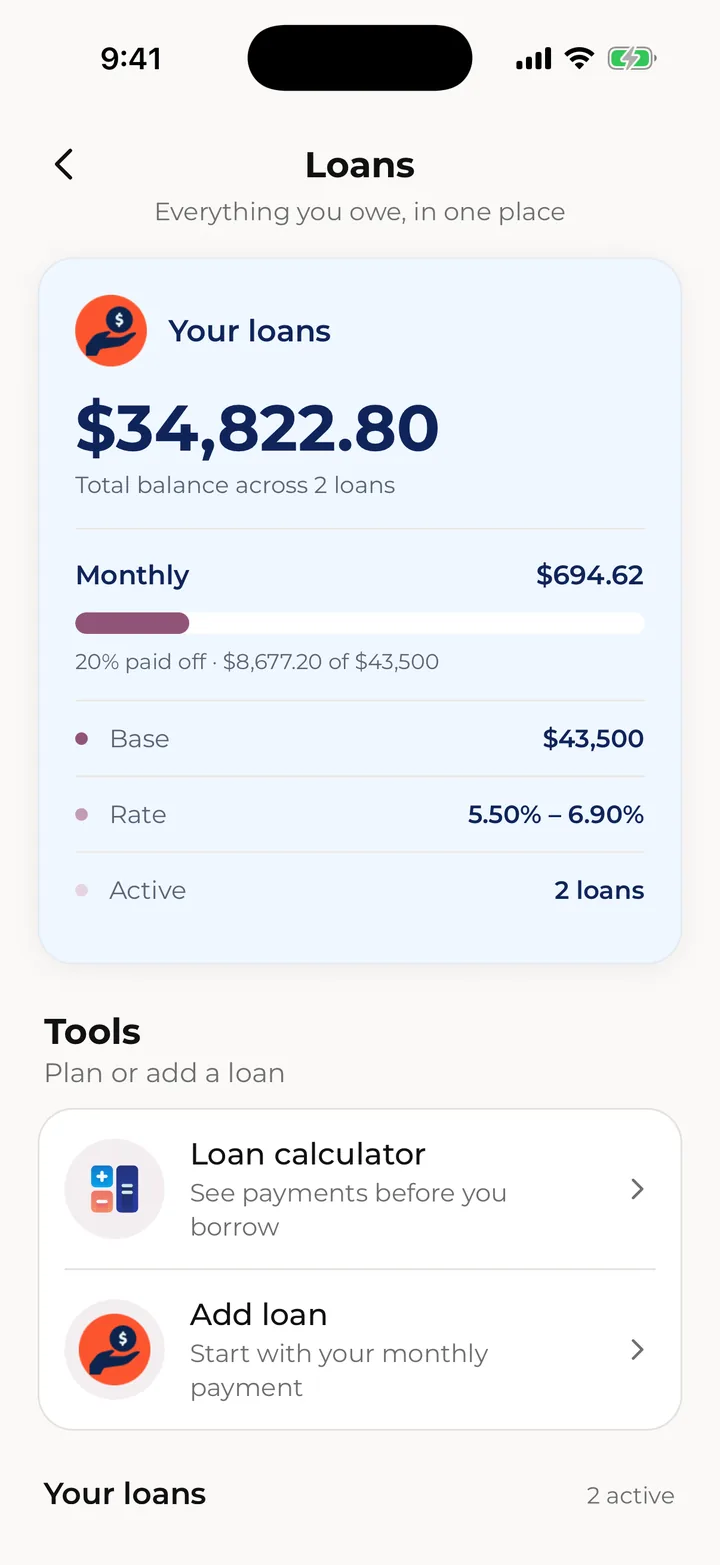
Open your loans from Loans tracker under Go further on Home, or from Money on the Cards tab. To add one, tap Add > Loan.

  1. On How much do you pay each month?, type the payment from your loan statement and tap Continue.
  2. On Your loan, pick the loan type and fill in Amount borrowed, Interest rate, Term, Start date and First payment, plus where it's Paid from (or Skip). Tap Continue.
  3. On Review your loan, check the monthly payment, total interest and Total you’ll pay, and tap the schedule to see every payment. Turn on Add to monthly bills to count the payment in your monthly spending, or leave it off to keep it under Loans only. Tap Save loan.

Skip works out each payment's interest and balance from your figures, and the last payment takes up any small difference. If your payment would clear the loan before its term, the review tells you, so you can check it against your statement.

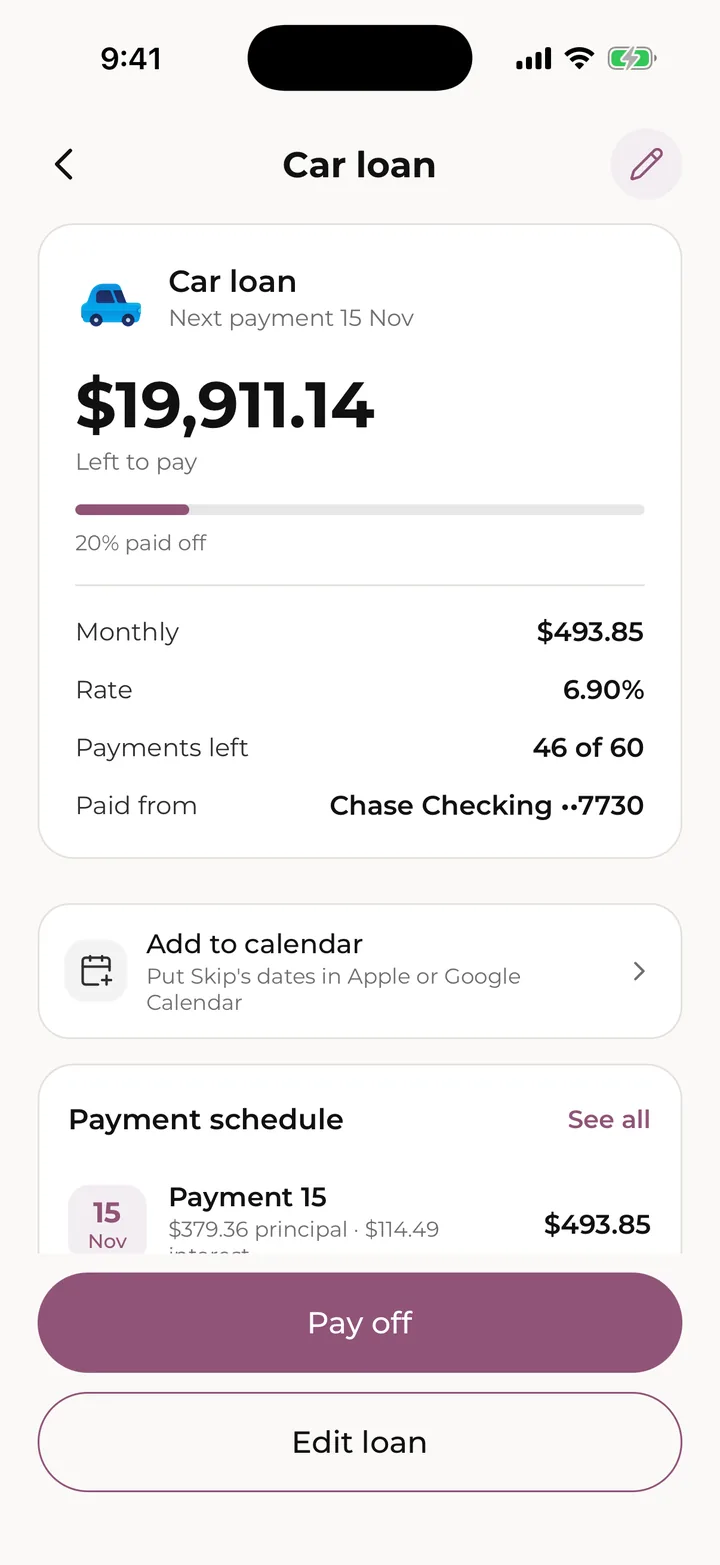
Open a loan to see what's Left to pay, how much is paid off, the Payment schedule and History. Payments are recorded on their dates from the account you picked. To change the loan, tap Edit loan.

To pay extra or pay the loan off, tap Pay off, type an amount or tap Pay it all, and tap Continue. Check the date and account, then tap Pay off. A part payment shortens the loan. To undo one, tap it in History and confirm; the newest comes off first.

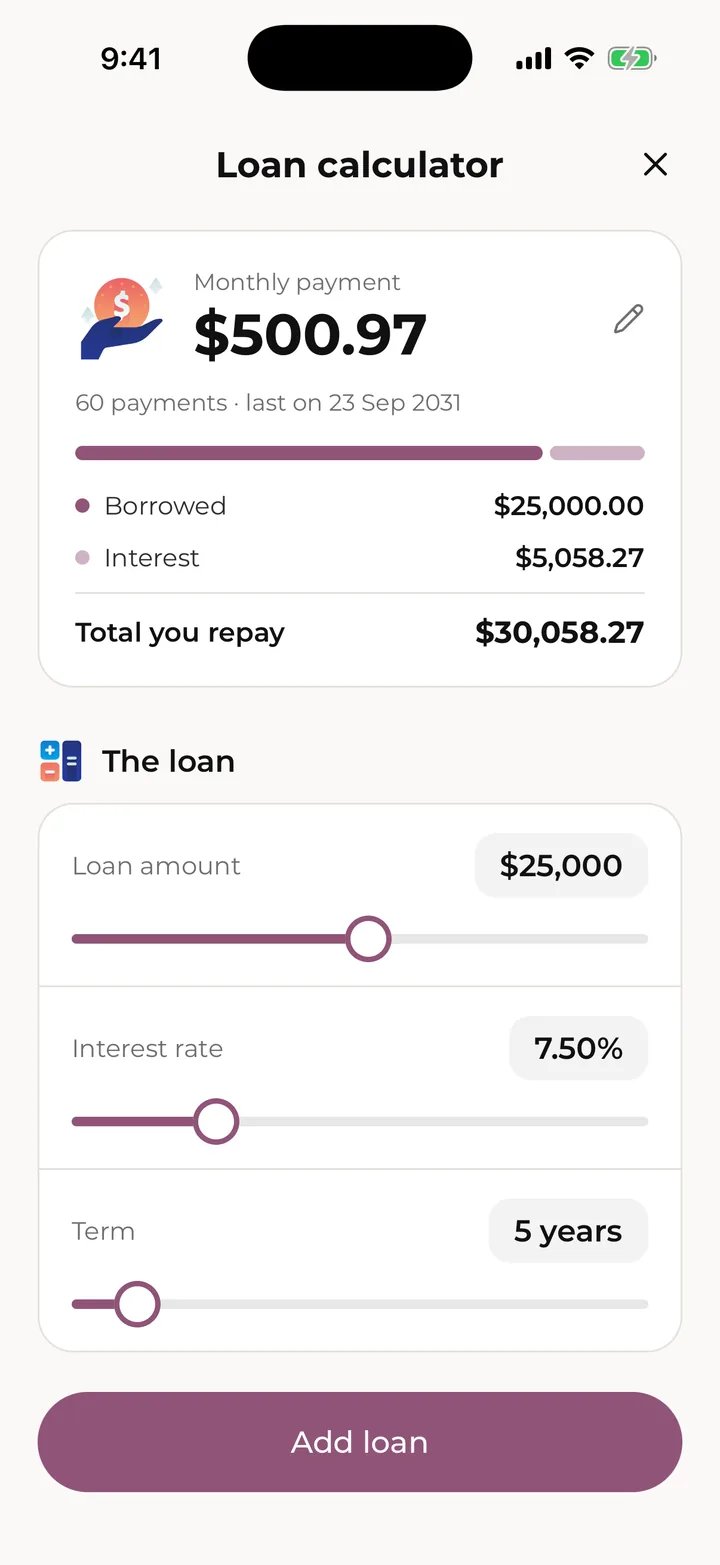
To try numbers first, open the Loans page and tap Loan calculator under Tools. Change the amount, rate and term, add extra payments or fees, and see how much interest overpaying would save. It's free and saves nothing, so tap Add loan when you want to add a real one.

Your loans, with the calculator and Add loan under Tools.
A loan’s page: what’s left, the schedule and history.
The free loan calculator.

Spending habits PRO

See what an everyday treat really costs, and what skipping it saves.

Spending habits are part of Skip Pro. On Free, the Spending habits tile on Home shows a PRO badge and explains what it does.

  1. On Home, tap Spending habits under Go further, then tap Add a habit.
  2. Pick what you want to track, like Coffee or Lunch out, or tap Add my own and give it a name and an icon.
  3. Type how much it costs each time.
  4. Check the color, Paid with and start day, then tap Start tracking.

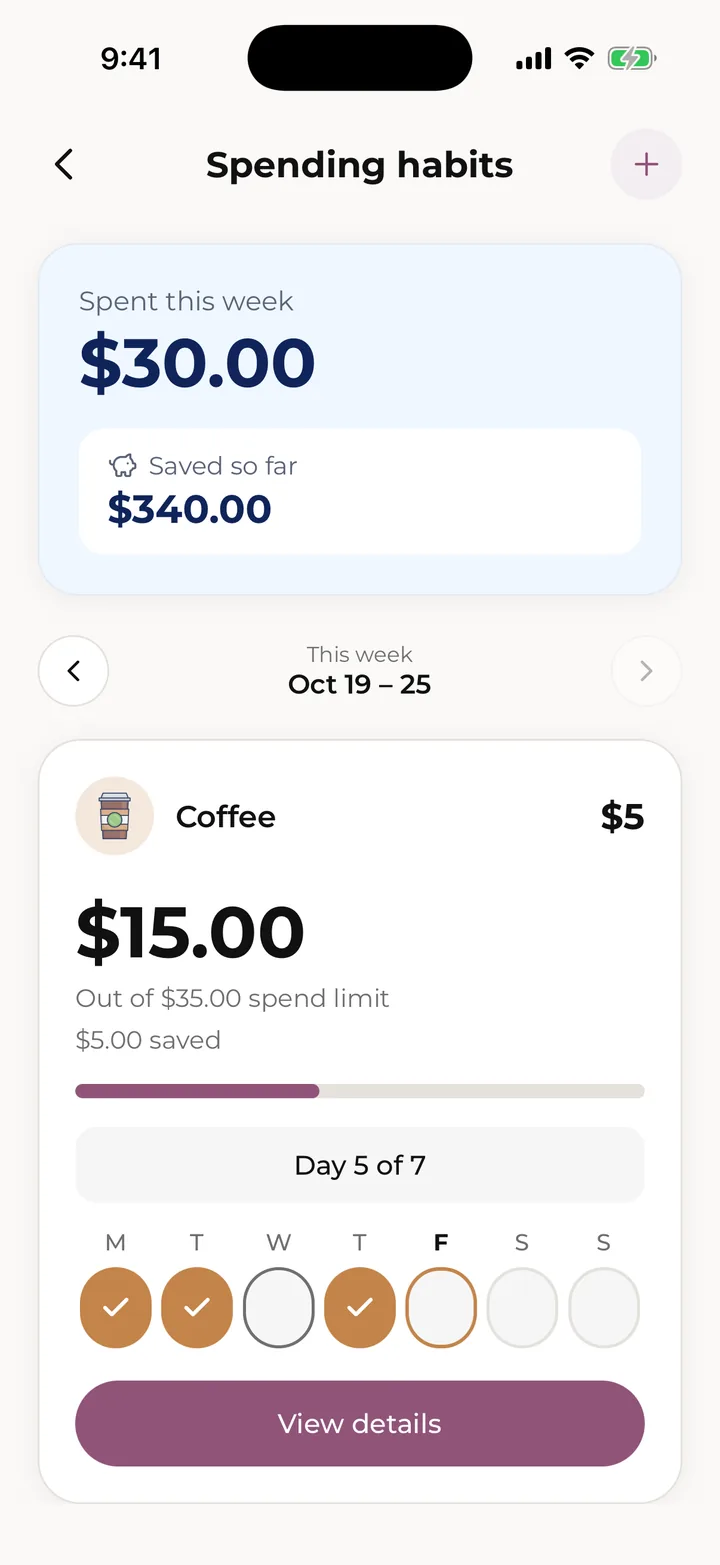
Each habit gets a card for the week, Monday to Sunday. Tap a day you bought it and Skip adds a receipt at that price. Tap the day again to remove that receipt. Every past day you didn't buy it counts as saved, so the card shows what you've spent against a weekly limit (the price times seven) and how much you've saved.

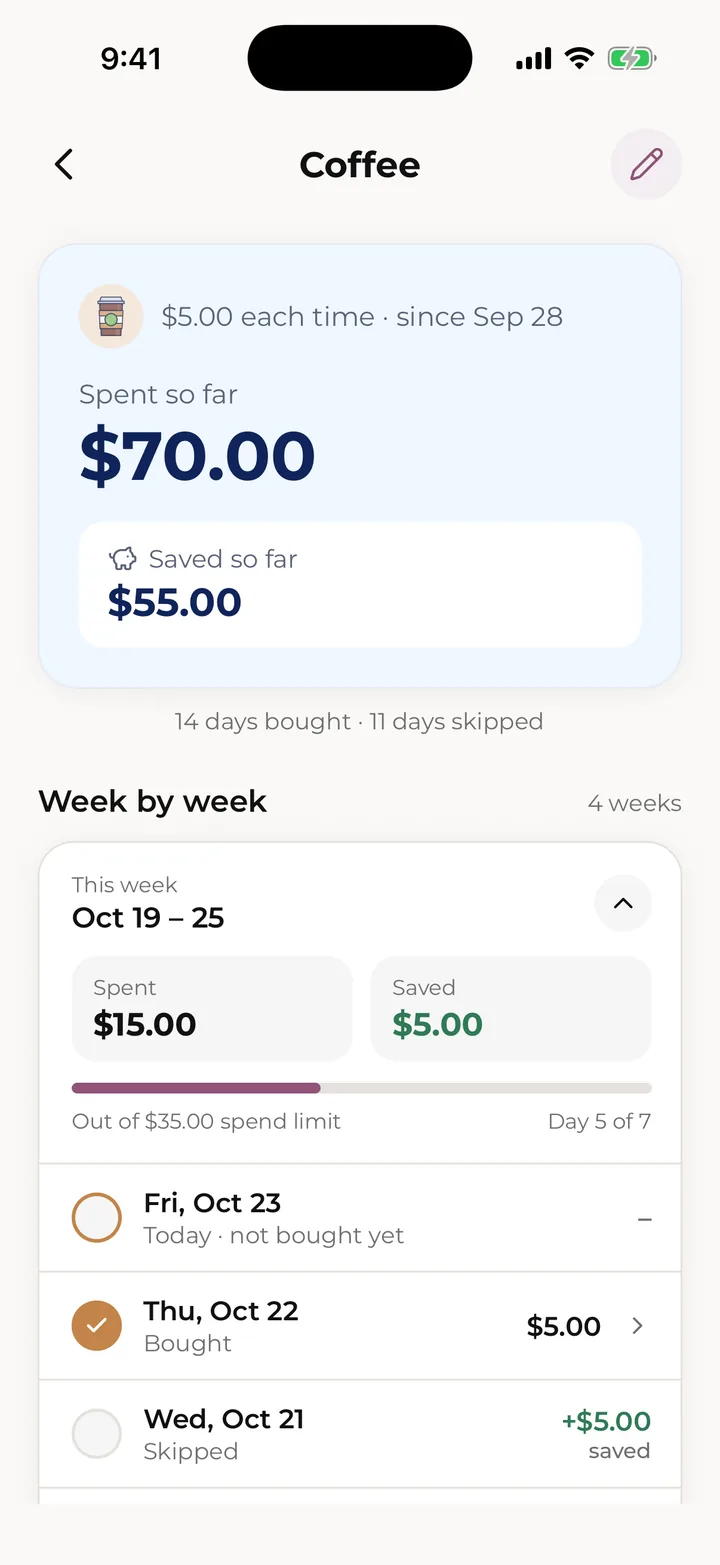
Use the arrows to look at earlier weeks. Tap View details for the week-by-week history, and to edit or delete the habit.

Habit receipts count in your receipts and your balance like any other. If Skip Pro ends, your habits are kept but locked until you have Pro again.

Spending habits: tap the days you buy it.
A habit’s week-by-week history.

Savings and goals

Money left over each month moves to Savings, and from there to the goals you’re saving for.

Savings and goals are free on every plan. Open them from Money on the Cards tab.

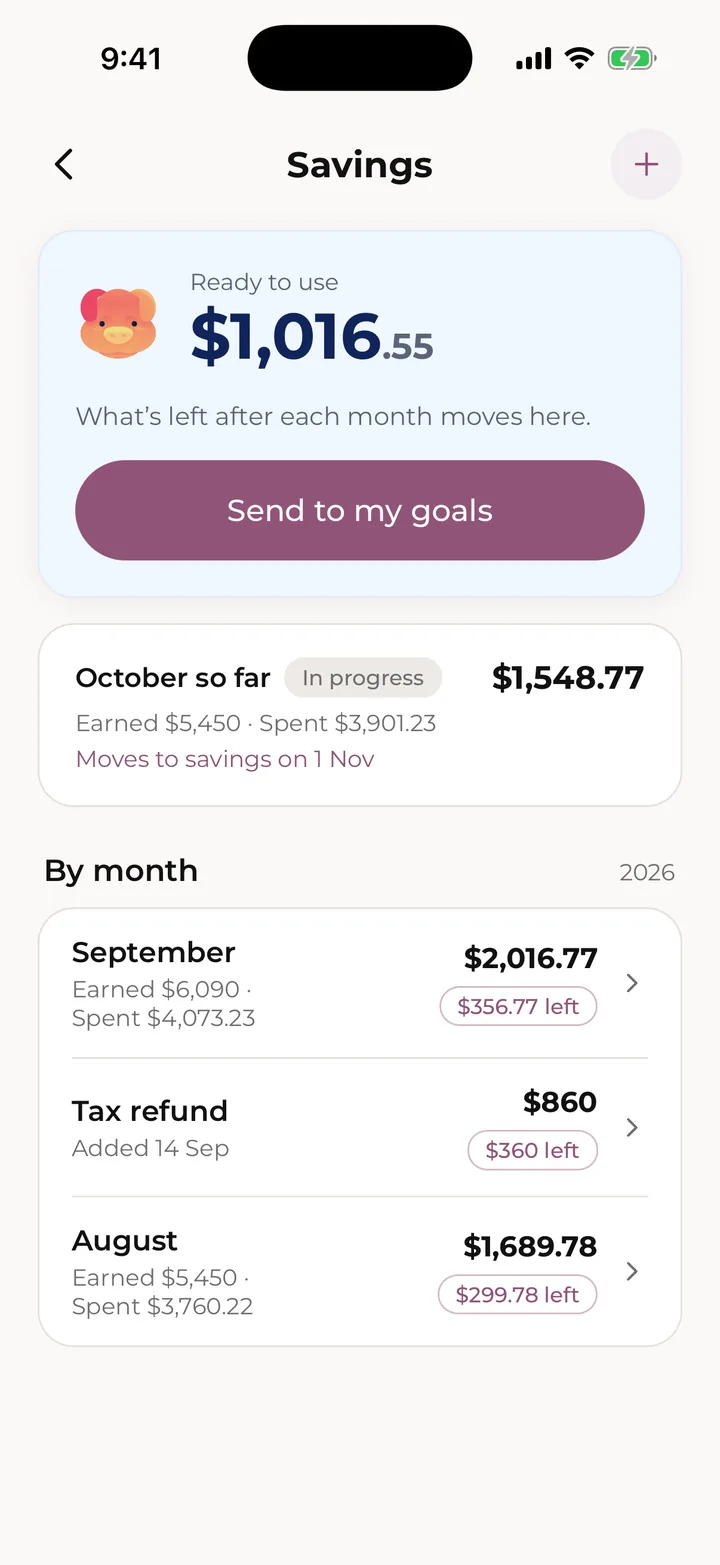
On the 1st of each month, Skip adds up what you earned and spent last month. Whatever is left over moves to Savings, and the next time you open Skip a wrap-up shows how the month went. If you spent more than you earned, nothing moves and the new month is a fresh start. Tap Send to my goals to share the money out, or Maybe later to leave it in Savings.

The Savings page shows what's Ready to use, how this month is going so far, and each past month. Tap the plus button (Add to savings) for money that isn't pay, like a gift. Tap a month to change or remove what it moved.

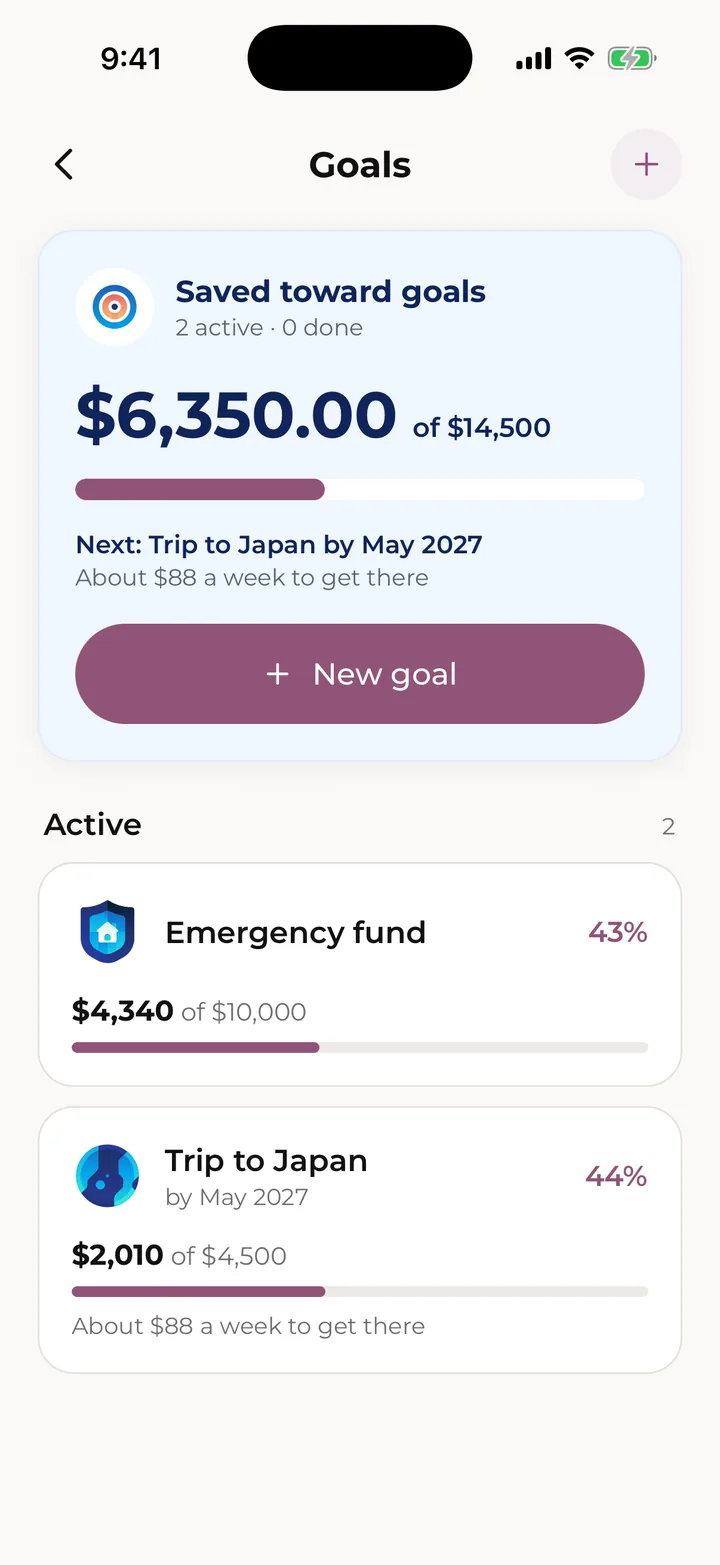
To start a goal, tap Add > Goal. Enter how much you need, pick a month to reach it by (or No date) and anything Already saved, and Skip shows about how much to put aside each week. Tap Continue, give the goal a name and type, and tap Save to Goals.

To fill a goal, tap Send to my goals on the Savings page, or open the goal and tap Add from savings. Take money out puts money back in Savings.

When you buy what you saved for, open the goal, tap the pencil, tap Delete goal and choose I spent it. Then tap Add receipt to record the purchase, or I already added it to pick the receipt you added, so the money counts once.

Savings and goals are set aside inside Skip. They don't change your Current balance.

Savings: ready to use, this month so far, and past months.
Goals, and how far along each one is.

Insight and reminders

Insights PRO

Your money on one page: what comes in, what goes out and where it goes.

Insights is part of Skip Pro. On Free, the Insights card on Home shows what it does.

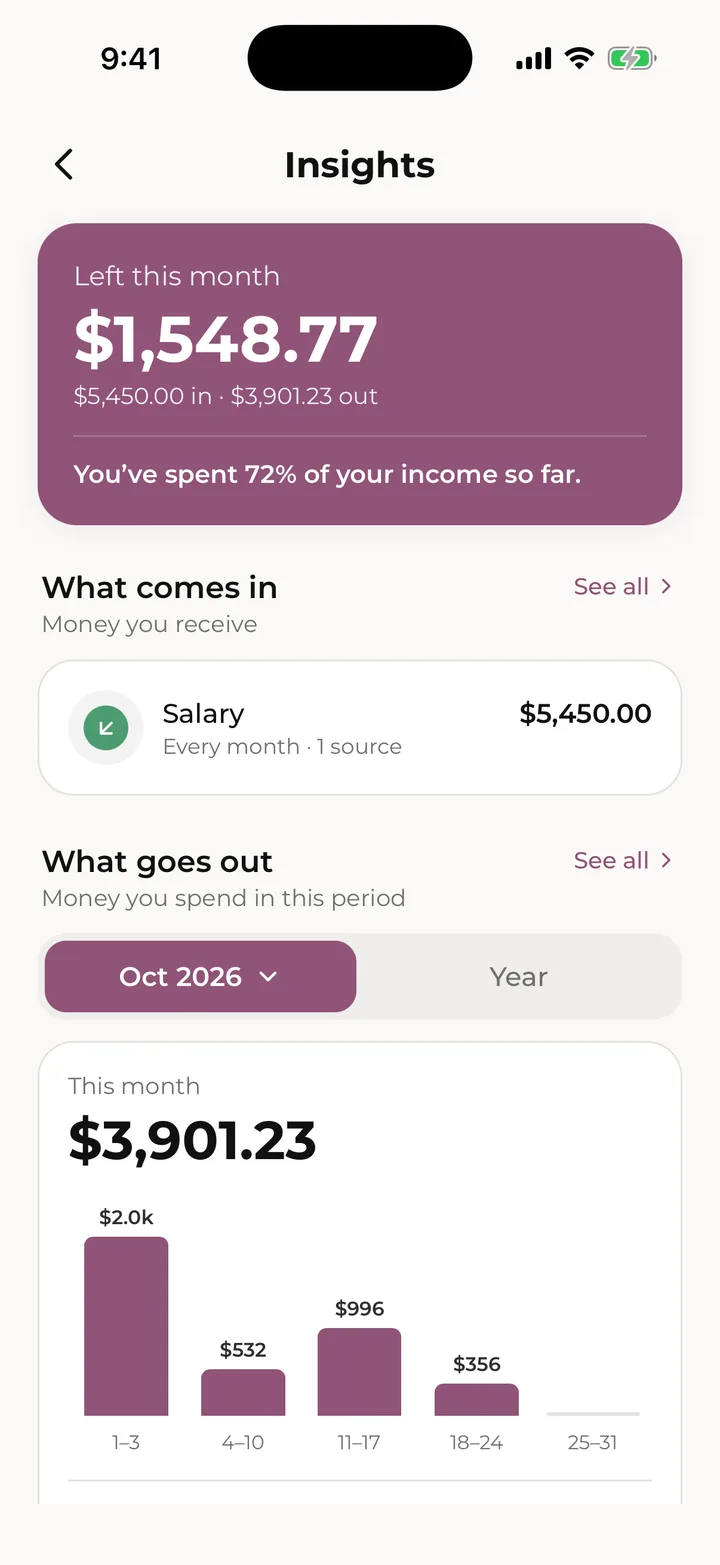
On Home, tap Insights under Go further. Switch between Month and Year, and tap the month or year to pick another one. You'll see:

  • Left this month: what came in, what went out and how much of your income you've spent.
  • What comes in and What goes out, with shop receipts, bills and subscriptions apart.
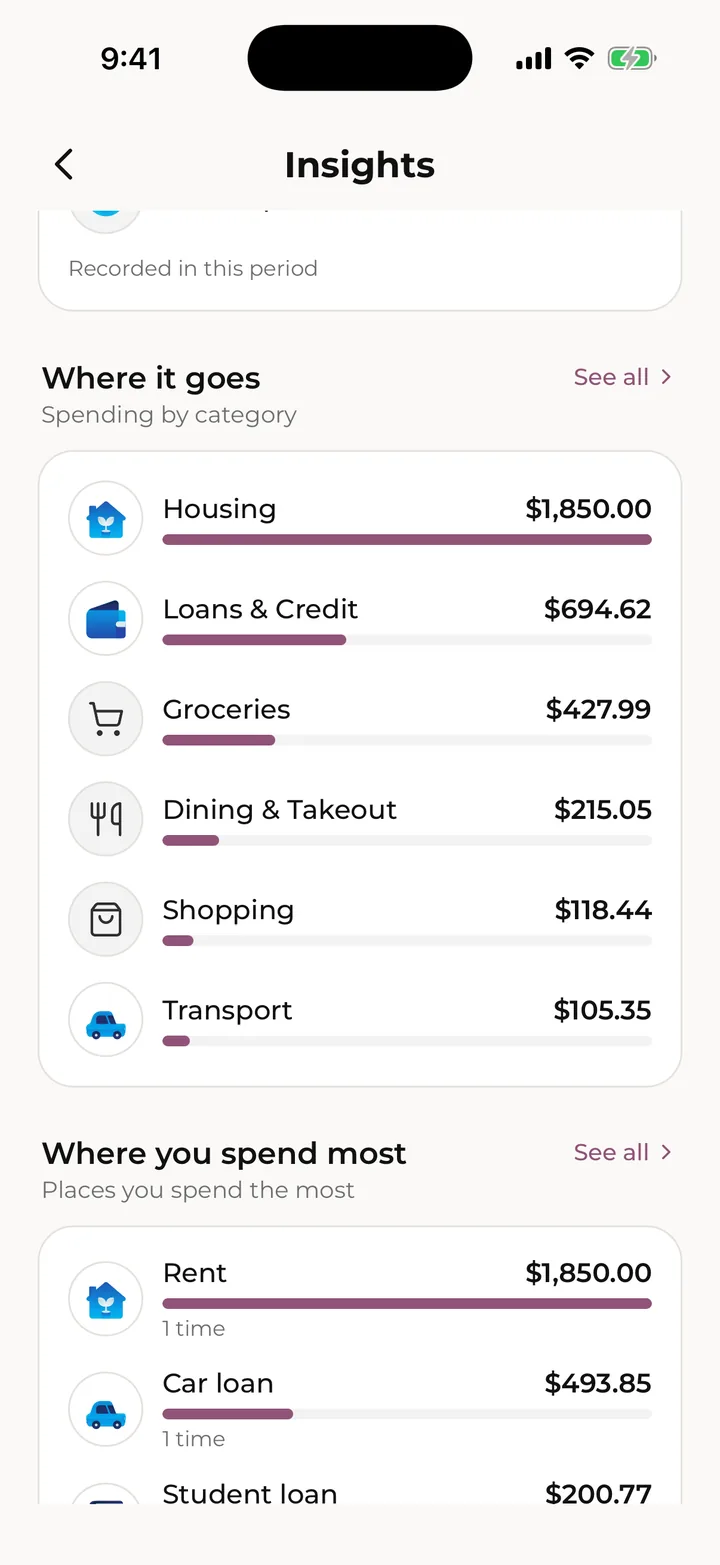
  • Where it goes: your spending by category.
  • Where you spend most: the places you spend the most.
  • What you owe on your cards, and your Loans.
  • Bills & subscriptions and Coming up: the regular costs ahead.
  • Habits, Goals and Savings at a glance.

Tap See all on a section to open the full page behind it.

Insights: left this month, and what comes in and goes out.
Where your money goes, by category and by place.

Voice PRO

Say a receipt, bill or subscription out loud, then check it before it’s saved.

Voice is part of Skip Pro. On Free, the voice button shows a PRO badge and explains what it does.

  1. Tap Add, then Say it, I’ll add it.
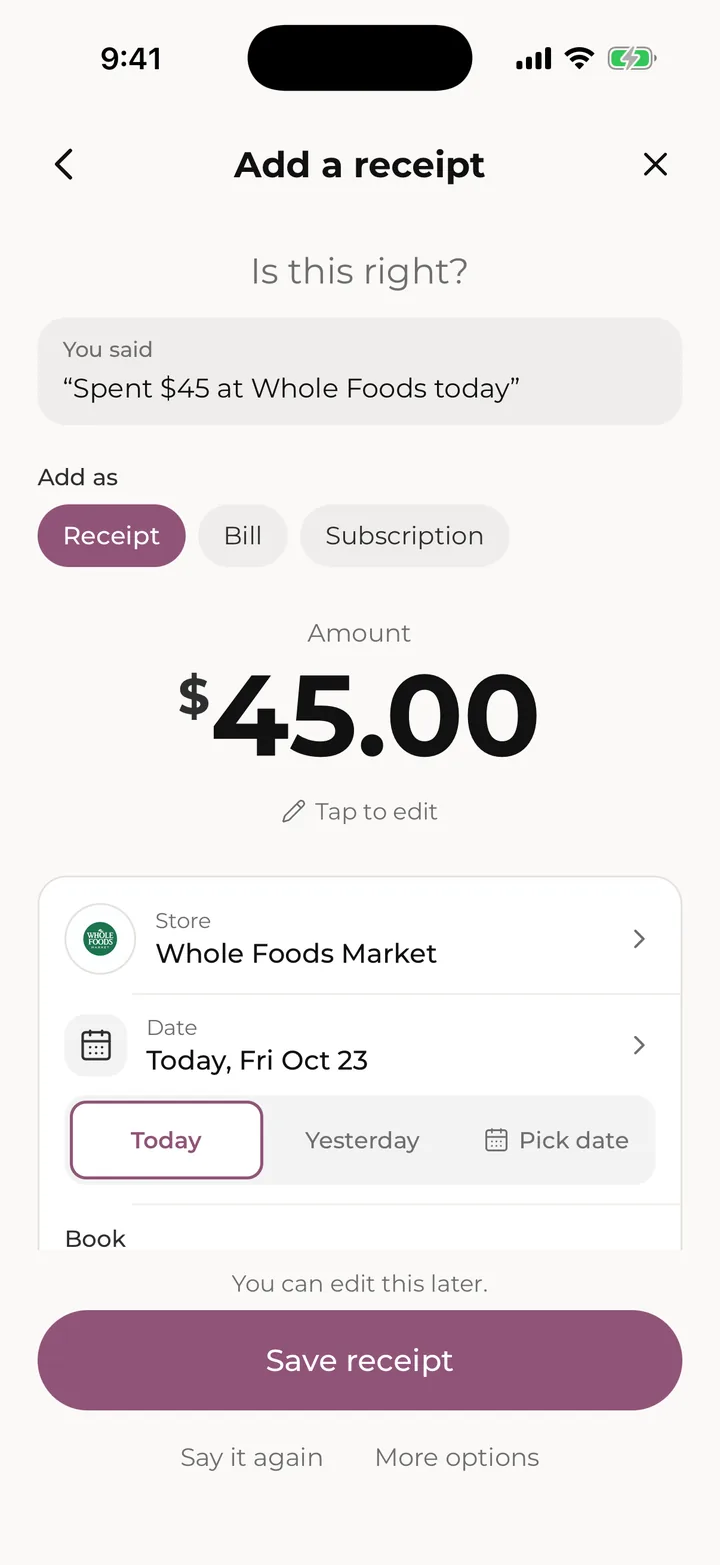
  2. Press and hold the button (it says Hold to talk) and say one thing, like “Paid $45 for groceries at Trader Joe’s”. Let go when you're done.
  3. On Did Skip hear you right?, check what Skip heard. Under Add as, pick Receipt, Bill or Subscription if it guessed wrong, and fill in anything missing.
  4. Tap Save receipt, Save bill or Save subscription.

Tap Say it again to start over, or More options to open the full form with what Skip heard filled in. With VoiceOver or TalkBack on, double-tap the button to start and again to stop.

Add one thing at a time. For now, Skip understands spoken English only. The first time, allow the microphone (and speech recognition on iPhone). Your voice is never stored.

Check what Skip heard before it’s saved.

Reminders and calendar

Get a heads-up before bills and paydays, and see every due date on a calendar.

Bills, subscriptions, loans, cards and accounts each have a Remind me switch on their form. Choose on the day, or 1 day, 3 days or 1 week before, and the time it arrives.

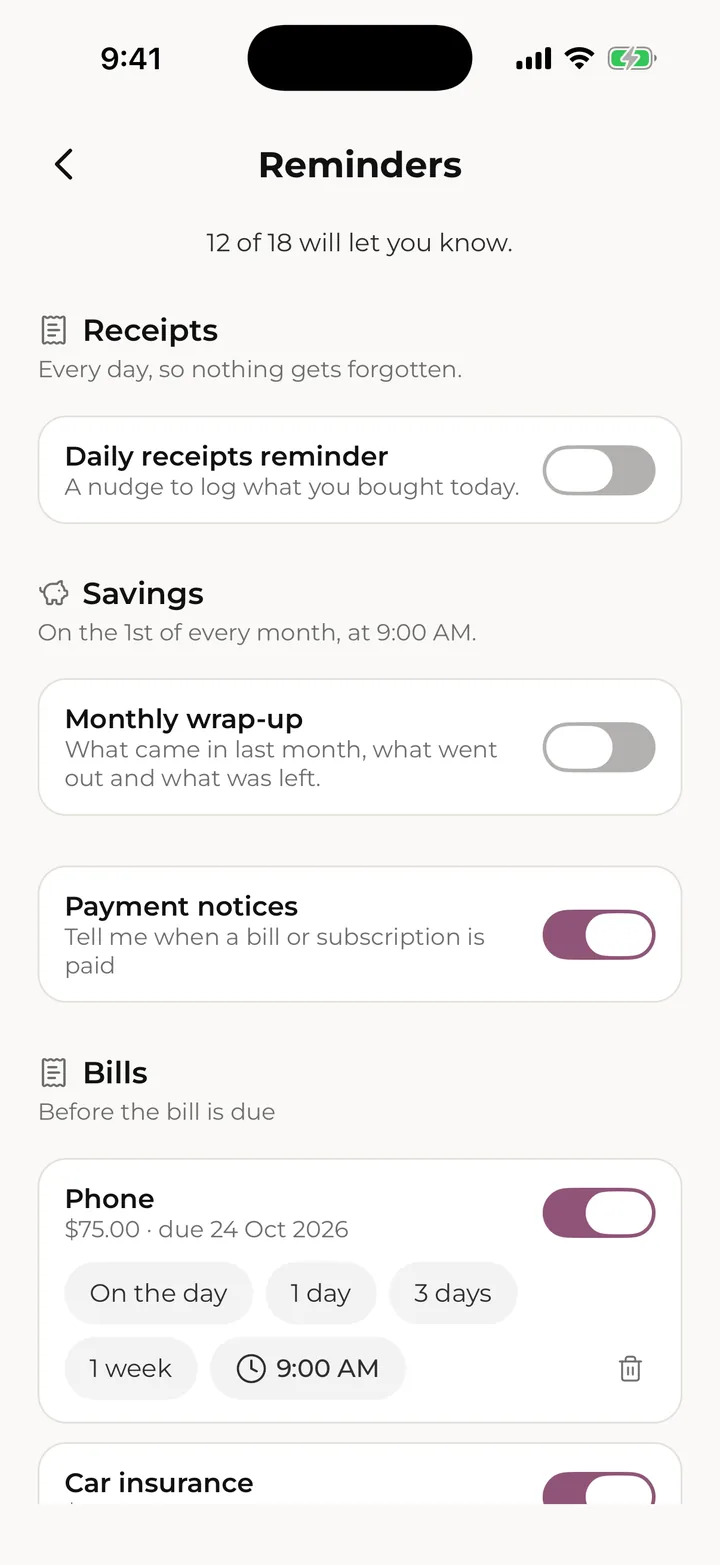
To see all your reminders in one place, go to Settings > Preferences > Reminders. There you can:

  • Turn on the Daily receipts reminder, a nudge at the time you choose to log what you bought.
  • Turn on the Monthly wrap-up, a notification on the 1st when last month's wrap-up is ready.
  • Turn on Payment notices to hear when a bill or subscription is paid.
  • Switch reminders on or off for each bill, subscription, card and bank account, and change when they arrive.

Reminders arrive as notifications, so notifications need to be on for Skip in your phone's settings.

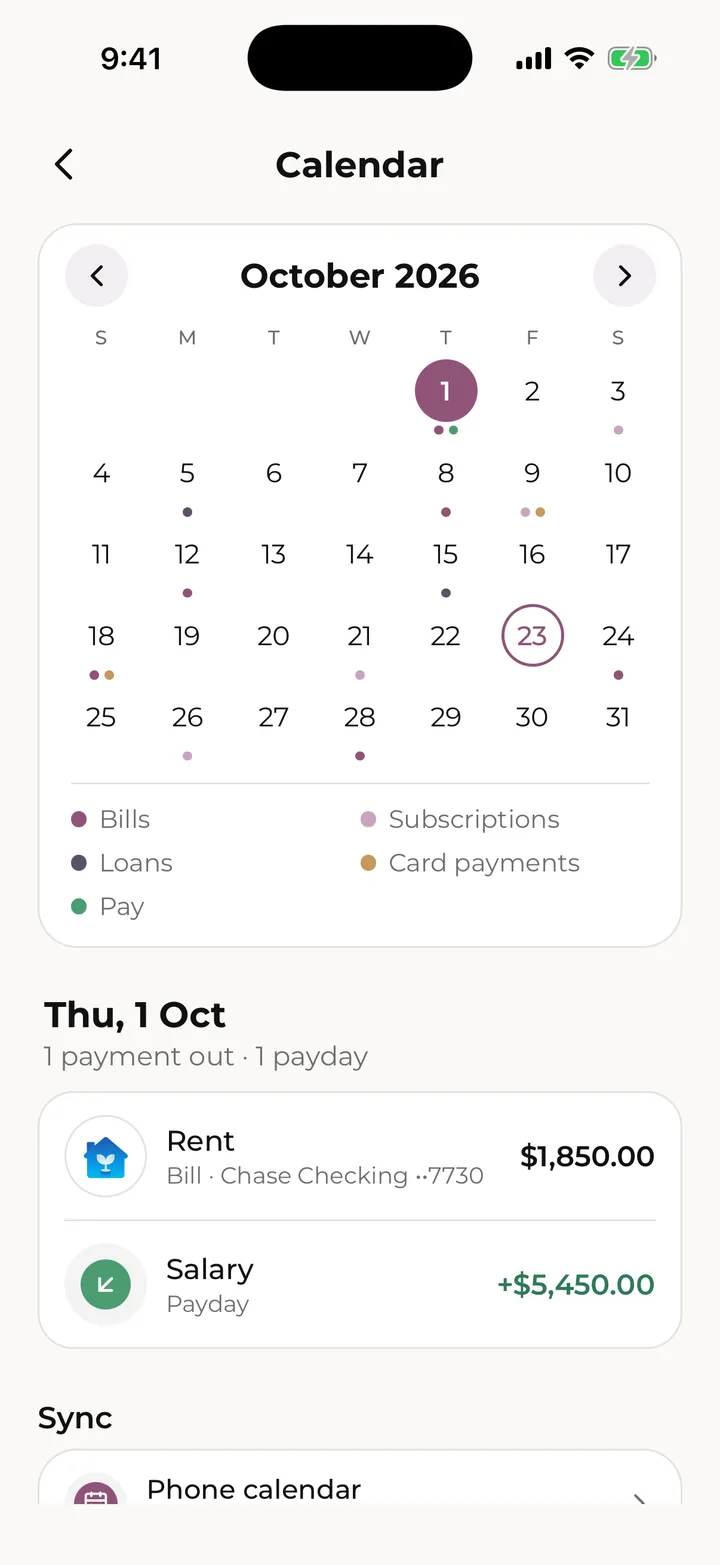
For a month view of your bills, subscriptions, loan payments, card payments and paydays, go to Settings > Calendar. Tap a day to see what's due.

To add your dates to your phone's calendar, open Calendar and tap Phone calendar. Then turn on Add to my calendar, choose a calendar and tap Add my dates here. Pick What to add, and turn off Show amounts if other people can see your calendar. Skip keeps the year ahead up to date, and changes made in the Calendar app are put back the next time Skip opens. Each bill and subscription page also has its own Add to calendar switch. The calendar is free on every plan.

All your reminders in one place.
The calendar: every due date and payday, day by day.

Your account

Settings

Make Skip look and work the way you like.

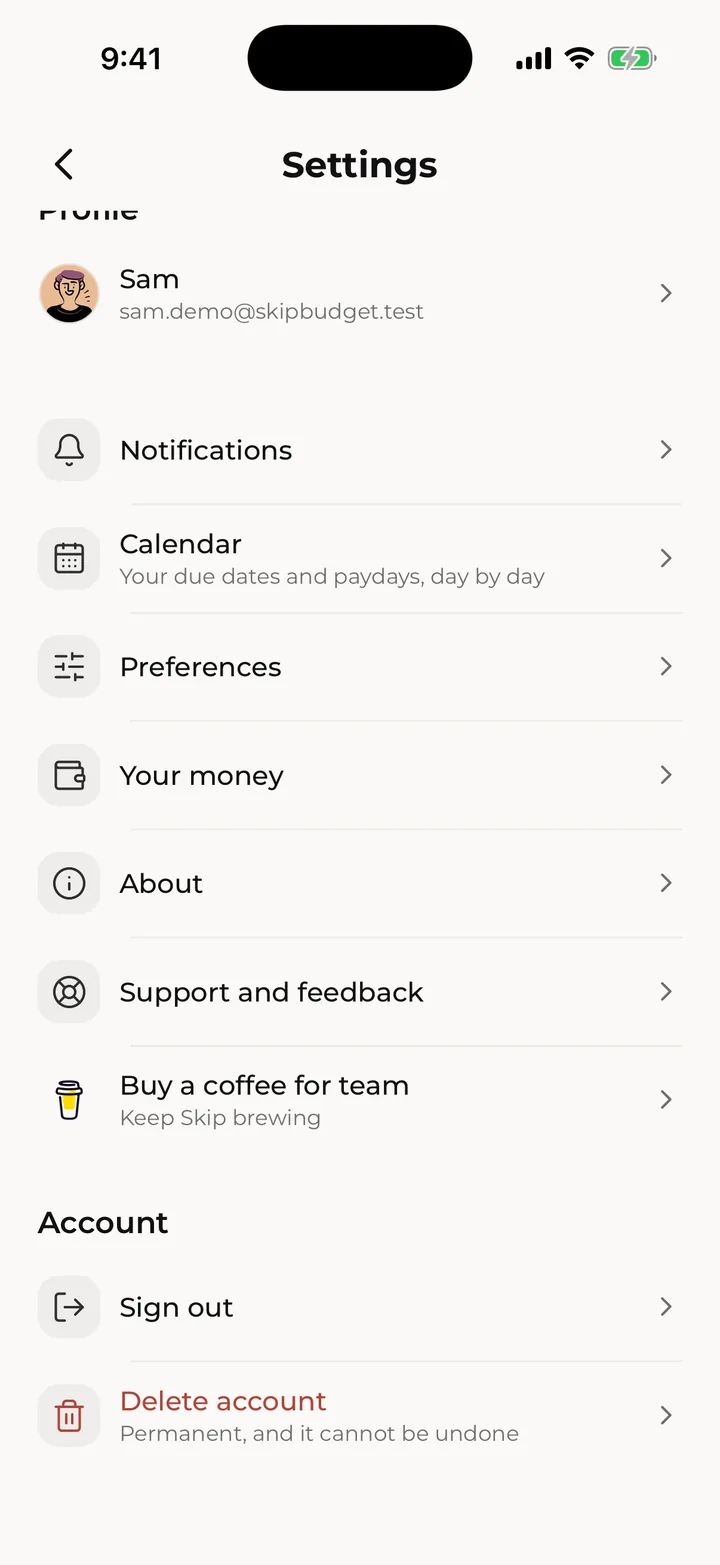
Open Settings by tapping your picture or the menu button on Home.

Preferences

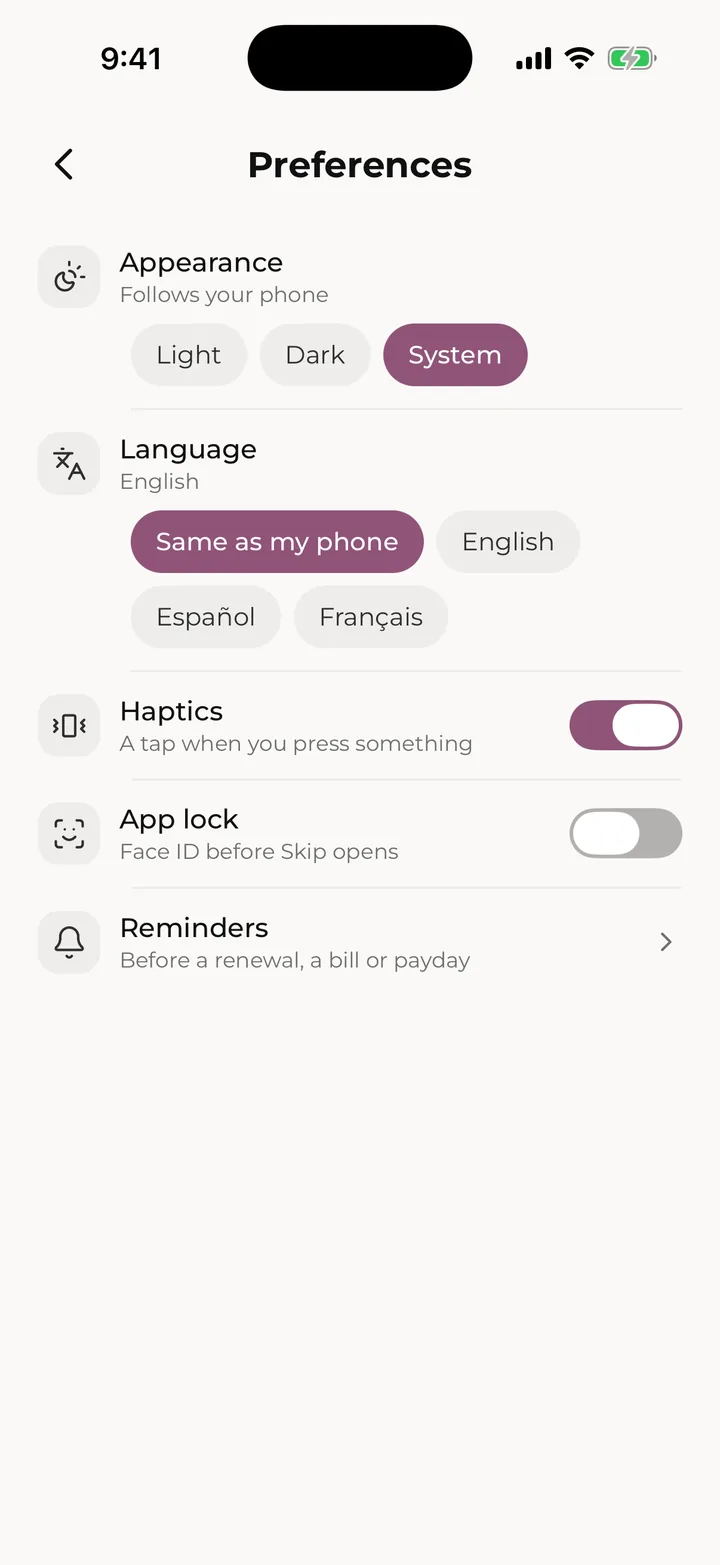
  • Appearance: Light, Dark or System, which follows your phone.
  • Language: Same as my phone, English, Español or Français.
  • Haptics: a small tap when you press something.
  • App lock: Face ID on iPhone, or your fingerprint or screen lock on Android, before Skip opens.
  • Reminders: everything Skip can remind you about.

Amounts are shown in the currency of your phone's region when you first open Skip: US, Canadian or Australian dollars, Mexican pesos or British pounds, and US dollars anywhere else. It only changes how amounts are written; nothing is converted, and there's no setting to change it.

Your money is a shortcut to your Bills, Subscriptions, Cards and accounts, Payday and Default receipt book.

Notifications shows news and new features from Skip. About has the Privacy policy, Terms of service and the app version.

With Skip Pro you can export your bill and subscription payments. Open Monthly bills or Subscriptions, tap See payment history, then tap Export CSV or PDF.

For help, Support and feedback has Getting started (puts the setup steps back on Home), Help on our website, Email support and Share an idea. Messages go to the Skip team, and replies come to the email you sign in with.

Settings, opened from your picture on Home.
Preferences: appearance, language, haptics and app lock.

Skip Pro

What Free includes, what Skip Pro adds, and how to join, restore or cancel.

Skip is free to use. Free includes:

  • Receipts, bills, subscriptions and pay, with as many pay sources as you like
  • 15 receipt scans and 15 uploads each month
  • One credit card and one bank account
  • The General receipt book
  • The last 90 days of history
  • Loans and the loan calculator, savings and goals, reminders, the calendar and store logos

Skip Pro adds:

  • Unlimited scans and uploads
  • Unlimited cards and accounts
  • Receipt books of your own
  • Up to 7 years of history
  • Voice entry, Insights and Spending habits
  • Exporting your payments as CSV or PDF

To join, go to Settings > Skip Pro, pick Yearly or Monthly, and tap the button at the bottom. Prices come from the App Store or Google Play for your country. If a free trial is open to you, the button says so and shows how long it lasts. You can also start from any PRO badge: tap it, then tap Get Skip Pro.

On a new phone, open the Pro page and tap Restore purchase.

Apple or Google Play bills Skip Pro, and it renews until you cancel. To manage or cancel it, go to Settings > Skip Pro while Pro is active and tap Manage in the App Store (or Manage in Google Play), which takes you to your subscriptions. Deleting your Skip account doesn't cancel it.

When Pro ends, nothing is deleted:

  • Cards and accounts beyond the free one lock. Open a locked one to Use this card instead (or Use this account instead), delete it, or get Pro again. Locked balances and payments still count, and bills keep charging to them.
  • Spending habits and your own receipt books lock. Their receipts still count.
  • History older than 90 days is hidden, not deleted.
  • Voice and Insights stop, and scans and uploads go back to 15 each a month.

Get Pro again and everything opens just as it was.

Your account

Change your name, picture or password, sign out, or delete your account.

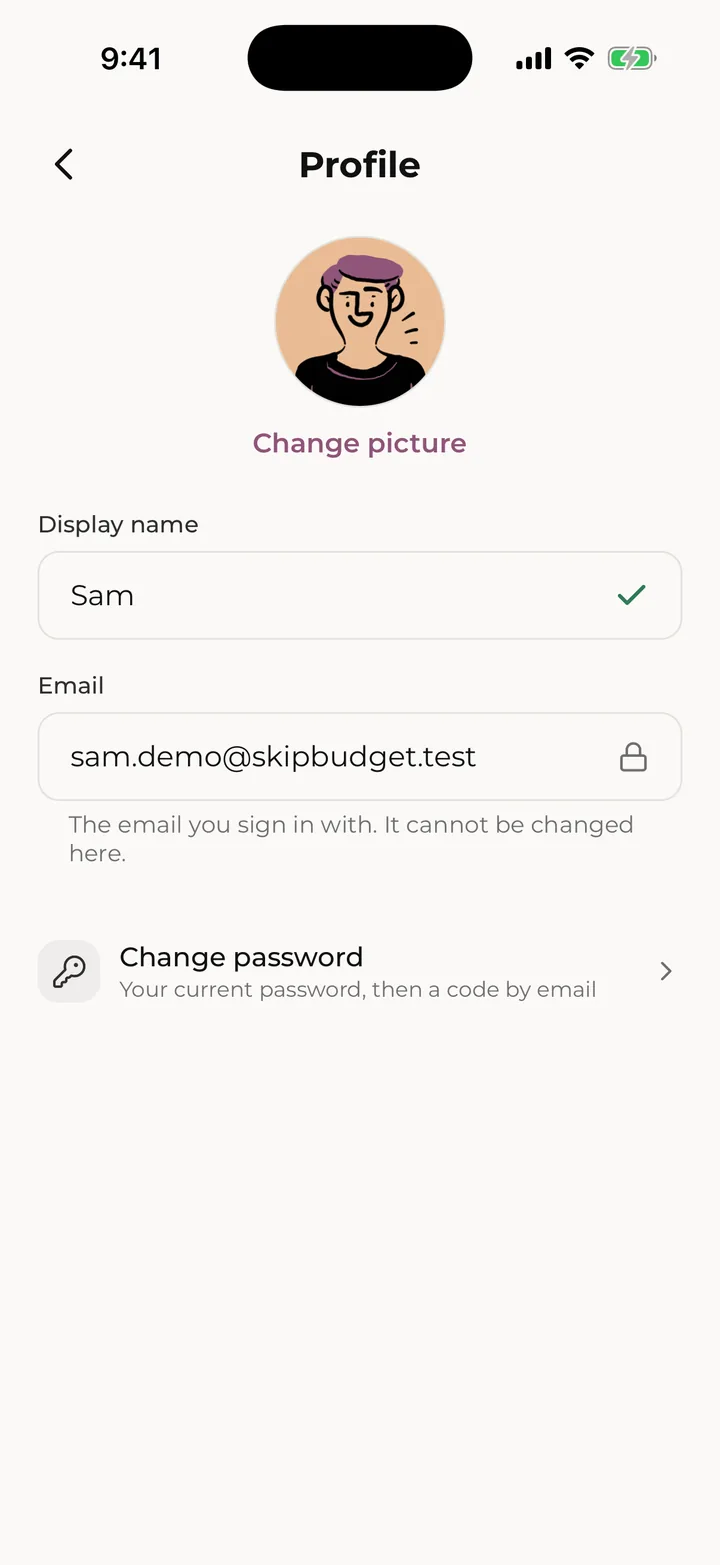
Go to Settings and tap your name under Profile. There you can:

  • Tap your picture to choose another one, or No profile.
  • Change your Display name and tap Save.
  • See your Email. It's the one you sign in with, and it can't be changed here.

To change your password, tap Change password, enter your Current password and your new one twice, and tap Continue. Skip emails you a 6-digit code to confirm it's you; type it in and you're done. Can't remember your current password? Tap Forgot password?.

Joined with Google or Apple? You'll see Set a password instead, so you can log in with your email too.

To sign out, go to Settings > Sign out. This also takes Skip's dates out of your phone's calendar.

To delete your account, go to Settings > Delete account.

  1. If you have Skip Pro, the first page reminds you that deleting won't stop it. Tap Manage in the App Store (or Manage in Google Play) to cancel, then Continue to delete.
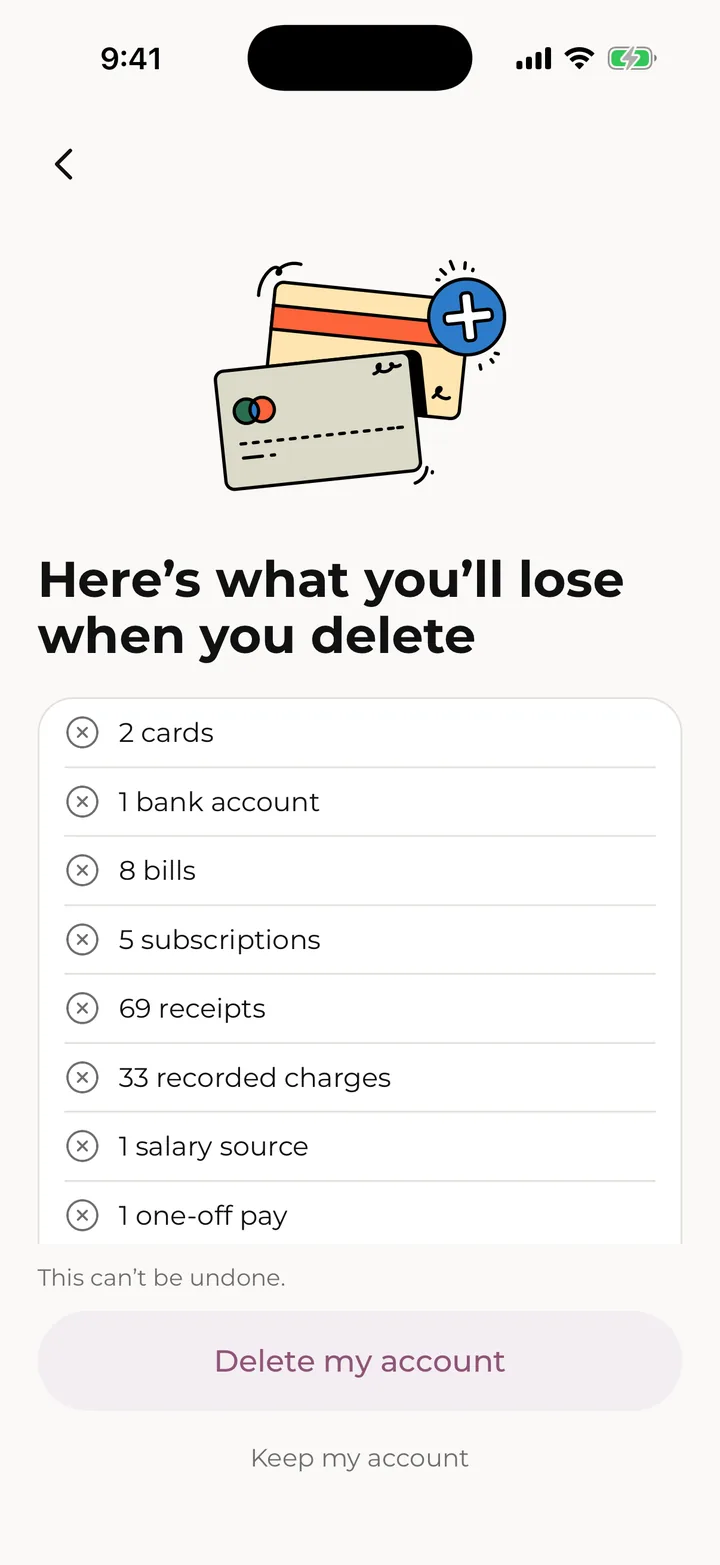
  2. The next page lists what you'll lose: your cards, accounts, bills, subscriptions, receipts and pay, plus loans, savings, goals and habits. Tap Delete my account, or Keep my account to stop.
  3. The last page confirms your account is deleted. Tap Done.

Deleting your account is permanent and can't be undone.

Your profile: picture, name, email and password.
Before you delete: what you’ll lose.